| MC540153 | Microsoft Teams: Spatial audio in Teams meetings |
|---|
| Classification | stayInformed |
|---|---|
| Last Updated | 04/11/2023 18:25:05 |
| Start Time | 04/11/2023 18:24:56 |
| End Time | 10/11/2023 07:00:00 |
| Message Content |
Microsoft Teams is pleased to announce an upgraded audio experience in meetings: Spatial audio. Spatial audio brings a next-generation immersive soundscape to Teams meetings when using either a wired stereo headset or built-in stereo speakers. This new audio experience spatializes the voices of attendees across the visual meeting stage in the Gallery view. This helps make conversations more natural, increasing the sense of audio presence, and making the conversation easier to follow when multiple people are speaking together.
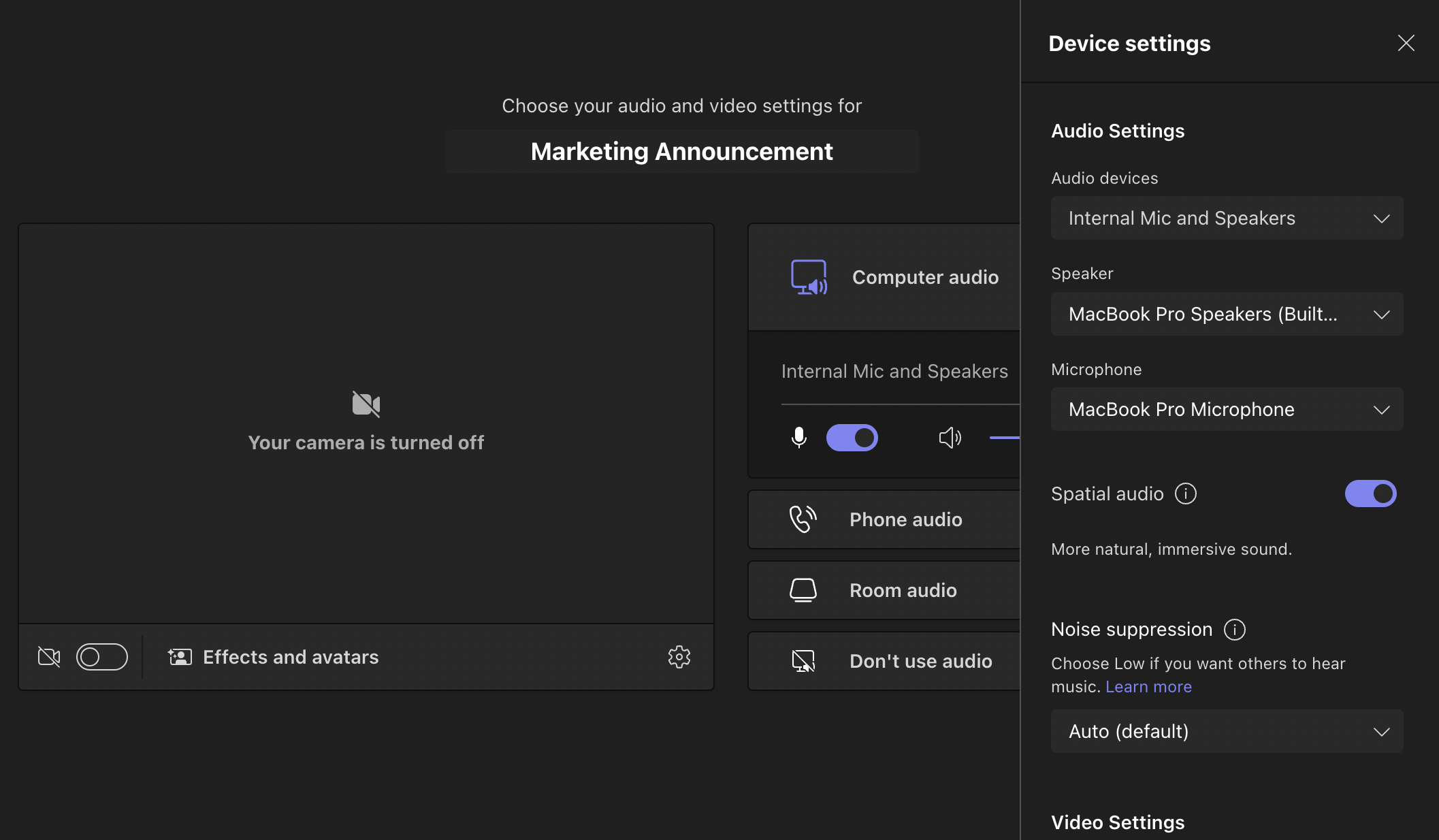
This message is associated with Microsoft 365 Roadmap ID 107783 [When this will happen:] Targeted release: We will begin rolling out in late April and expect to complete rollout by early May. Standard Release: We will begin rolling out in late May and expect to complete rollout by mid-June. GCC-High: We will begin rolling out in mid-July and expect to complete rollout by late July. DoD: We will begin rolling out in late August and expect to complete rollout by early September. [How this will affect your organization:] The new Spatial audio feature will be available to everyone using supported devices on Windows and MacOS client in your organization. It is a Teams client feature and there are no admin policy settings required to enable this feature. You can select a wired stereo headset or built-in stereo speakers on the meeting pre-join screen before you join a meeting. You can find this setting under Device Settings -> Speaker.
After joining a meeting, you will be able to see the Spatial audio introduction the first time you enter a meeting, then click on Try it now to open the Spatial audio setting panel.
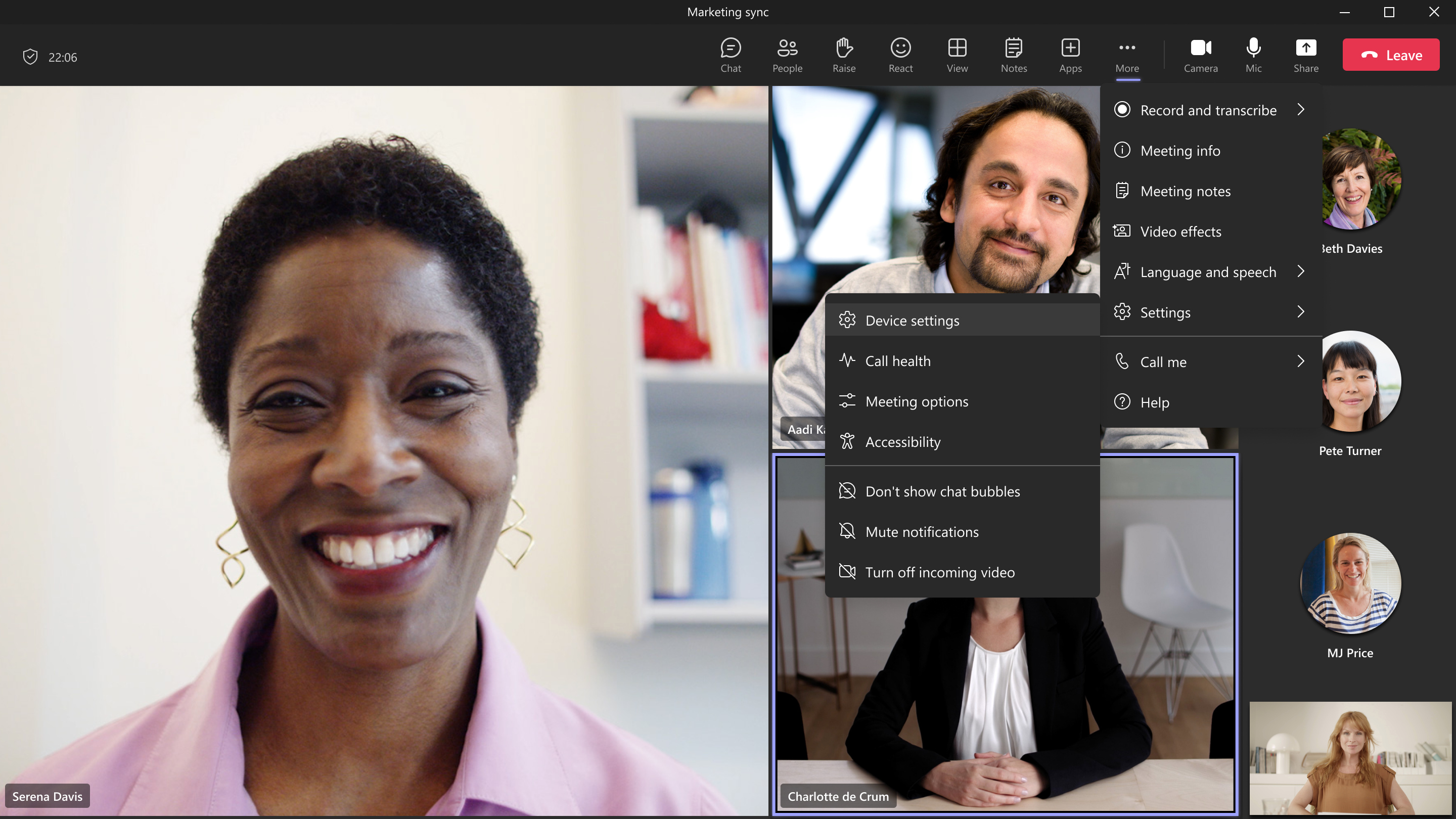
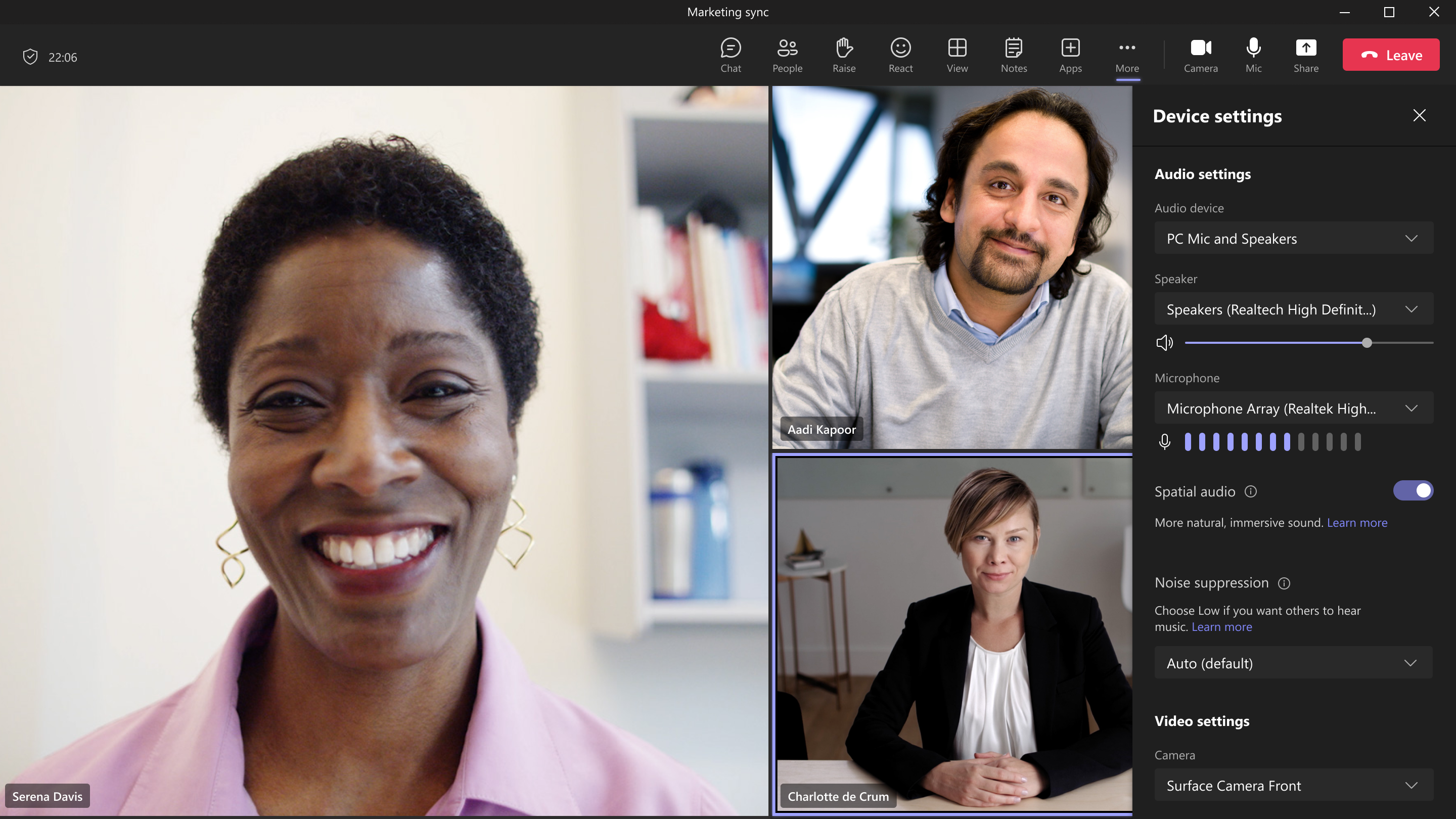
You can also activate Spatial audio by going to the More “…” menu in the meeting toolbar, then Device Settings, and you will find the Spatial audio toggle to activate the feature.
To enable Spatial audio, select a wired stereo headset or built-in stereo speakers under the Speaker section, then enable the Spatial audio toggle.
Note: Spatial audio is currently enabled only in Gallery view, so you can experience sound spatialized across the meeting stage. You will get the best spatial effect with three or more attendees in the meeting.
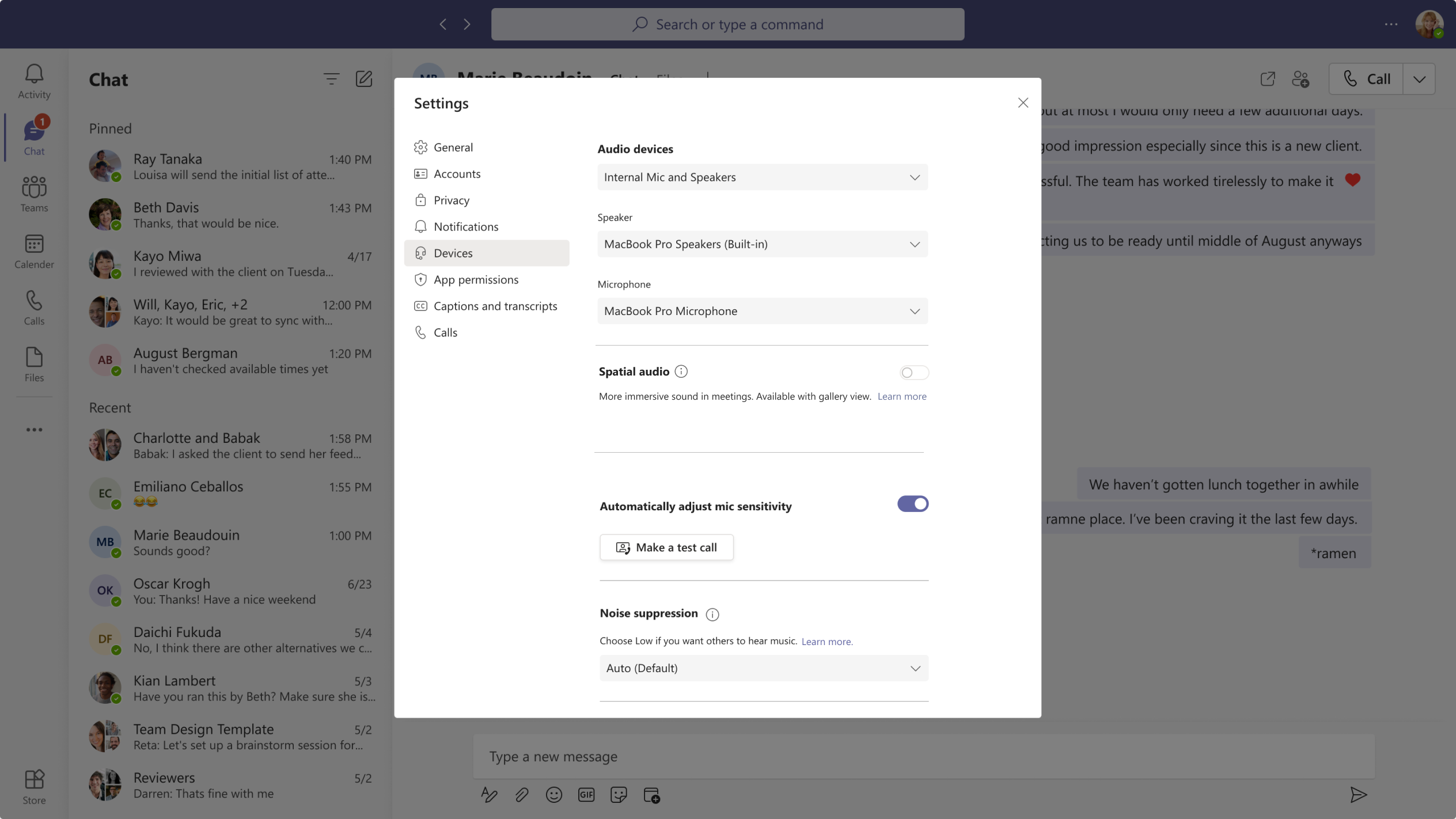
You can also control Spatial audio settings by going to Teams app settings -> Devices -> Spatial audio.
[What you need to do to prepare:] There is no action required from you at this time. You may want to update your training materials indicating that this feature is supported. Please keep in mind of the following dependencies and limits:
|
| Machine Translation |
Microsoft Teams、会議でのオーディオエクスペリエンスのアップグレードを発表できることを嬉しく思います:空間オーディオ。 空間オーディオは、有線ステレオ ヘッドセットまたは内蔵ステレオ スピーカーを使用する場合、Teams 会議に次世代の没入型サウンドスケープをもたらします。この新しいオーディオ エクスペリエンスは、ギャラリー ビューのビジュアル会議ステージ全体で出席者の声を空間化します。これにより、会話がより自然になり、音声の存在感が増し、複数の人が一緒に話しているときに会話をフォローしやすくなります。
このメッセージは、Microsoft 365 ロードマップ ID に関連付けられています107783 [これが起こるとき:] 対象を絞ったリリース: 4 月下旬にロールアウトを開始し、5 月上旬までにロールアウトを完了する予定です。 標準リリース: 5 月下旬にロールアウトを開始し、6 月中旬までにロールアウトを完了する予定です。 GCC-High: 7 月中旬にロールアウトを開始し、7 月下旬までにロールアウトを完了する予定です。 国防総省: 8 月下旬にロールアウトを開始し、9 月上旬までにロールアウトを完了する予定です。 [これが組織に与える影響:] 新しい空間オーディオ機能は、組織内の Windows および MacOS クライアントでサポートされているデバイスを使用するすべてのユーザーが利用できます。これは Teams クライアント機能であり、この機能を有効にするために必要な管理ポリシー設定はありません。 ミーティングに参加する前に、ミーティングの事前参加画面で有線ステレオヘッドセットまたは内蔵ステレオスピーカーを選択できます。この設定は、[ デバイス設定]-[>スピーカー]にあります。
ミーティングに参加すると、初めてミーティングに参加したときに [空間オーディオ の概要] が表示され、[ 今すぐ試す] をクリックして [空間 オーディオ] 設定パネルを開きます。
会議ツールバーの [その他 “…” メニューに移動しても空間オーディオをアクティブにし、次に デバイス設定に移動すると、機能をアクティブにするための 空間オーディオ トグルが表示されます。
空間オーディオを有効にするには、[スピーカー] セクションで有線ステレオ ヘッドセットまたは内蔵ステレオ スピーカーを選択し、[空間オーディオ ] トグルを有効にします。
手記: 空間オーディオは現在ギャラリービューでのみ有効になっているため、会議ステージ全体で空間化されたサウンドを体験できます。会議に 3 人以上の出席者がいる場合に最適な空間効果が得られます。
Teams アプリの設定 -> デバイス -> 空間オーディオ に移動して、空間オーディオ設定を制御することもできます。
[準備するために必要なこと:] 現時点では、必要な操作はありません。この機能がサポートされていることを示すトレーニング資料を更新することをお勧めします。 次の依存関係と制限に注意してください。
|