| MC565167 | Microsoft OneDrive: PDF Annotation and Interactable Form Fields |
|---|
| Classification | stayInformed |
|---|---|
| Last Updated | 05/31/2023 23:10:11 |
| Start Time | 05/31/2023 23:10:04 |
| End Time | 07/30/2023 07:00:00 |
| Message Content |
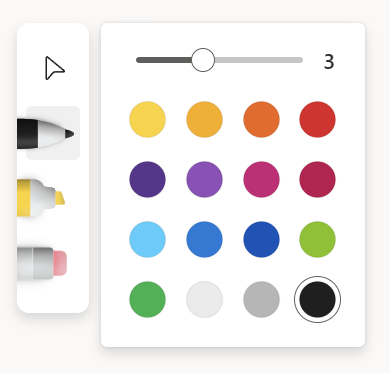
Using the “Edit” action in Microsoft OneDrive for the Web, you can seamlessly annotate with hand-drawn ink into your PDF documents and have your modifications automatically saved to your OneDrive account. Additionally, OneDrive for Web allows you to interact with form fields, making it simple for editing and modifying PDF documents. This message is associated with Microsoft 365 Roadmap ID 124802 [When this will happen:] Targeted Release: We will begin rolling out in late May 2023 and expect to complete rollout by early June 2023. Standard Release: We will begin rolling out in early June 2023 and expect to complete rollout by late June 2023. [How this will affect your organization:] Steps to annotate with hand-drawn ink using Edit action on OneDrive for Web:
Steps to interact with PDF document that has form fields on OneDrive for Web:
[What you need to do to prepare:]
You may want to notify your users about this new capability and update your training and documentation as appropriate. |
| Machine Translation |
Microsoft OneDrive for the Web の “編集” アクションを使用すると、手描きのインクで PDF ドキュメントにシームレスに注釈を付け、変更内容を OneDrive アカウントに自動的に保存できます。さらに、OneDrive for Web ではフォーム フィールドを操作できるため、PDF ドキュメントの編集と変更が簡単になります。 このメッセージは、Microsoft 365 ロードマップ ID に関連付けられています124802 [これが起こるとき:] 対象を絞ったリリース: 2023 年 5 月下旬にロールアウトを開始し、2023 年 6 月上旬までにロールアウトを完了する予定です。 標準リリース: 2023 年 6 月上旬にロールアウトを開始し、2023 年 6 月下旬までにロールアウトを完了する予定です。 [これが組織に与える影響:] OneDrive for Web の [ 編集 ] アクションを使用して手描きのインクで注釈を付ける手順:
OneDrive for Web 上のフォーム フィールドを持つ PDF ドキュメントを操作する手順:
[準備するために必要なこと:]
この新機能についてユーザーに通知し、必要に応じてトレーニングとドキュメントを更新することができます。 |