| MC602596 | Microsoft Teams Panels Update |
|---|
| Classification | stayInformed |
|---|---|
| Last Updated | 06/22/2023 22:49:18 |
| Start Time | 06/22/2023 22:49:11 |
| End Time | 10/14/2023 07:00:00 |
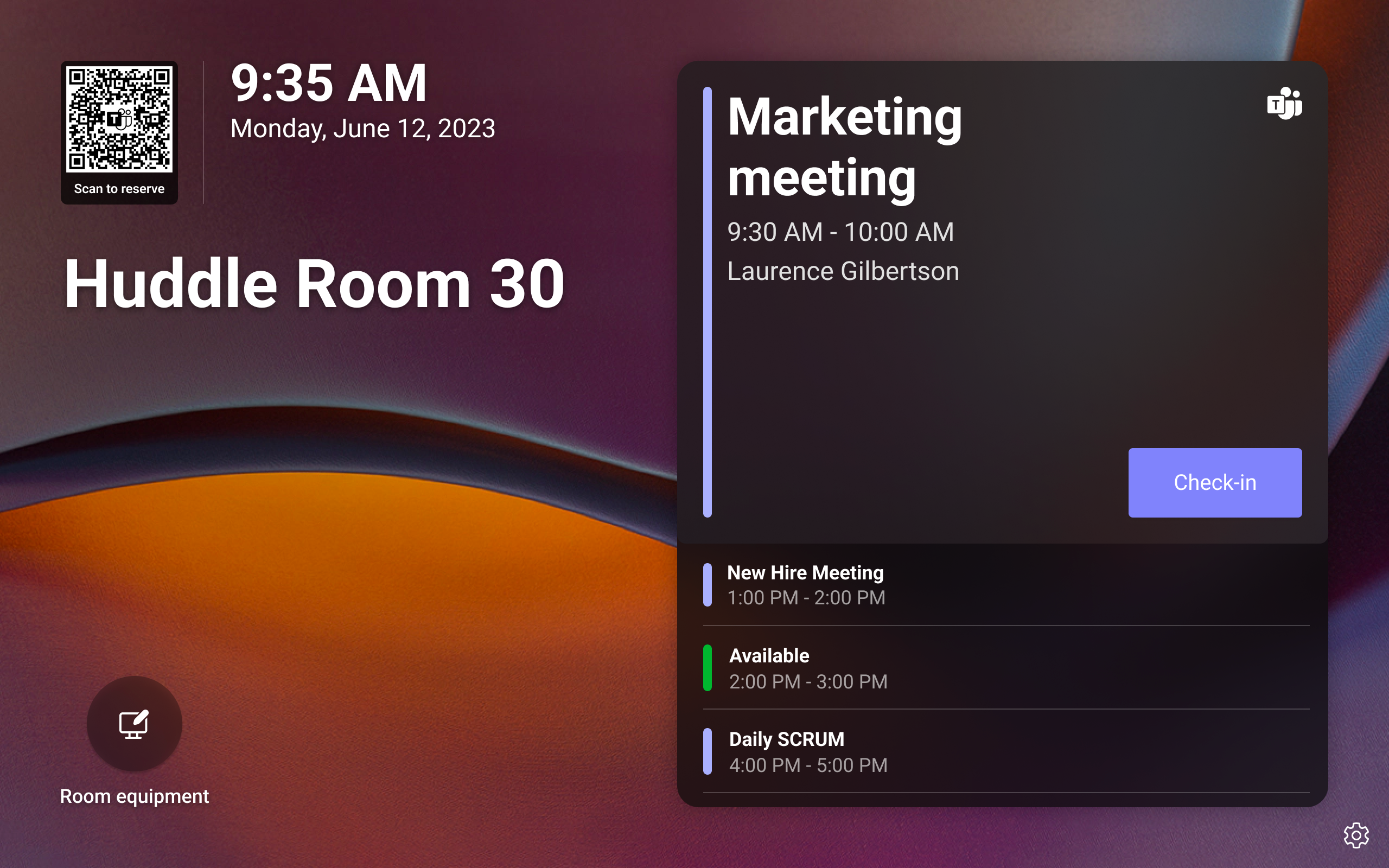
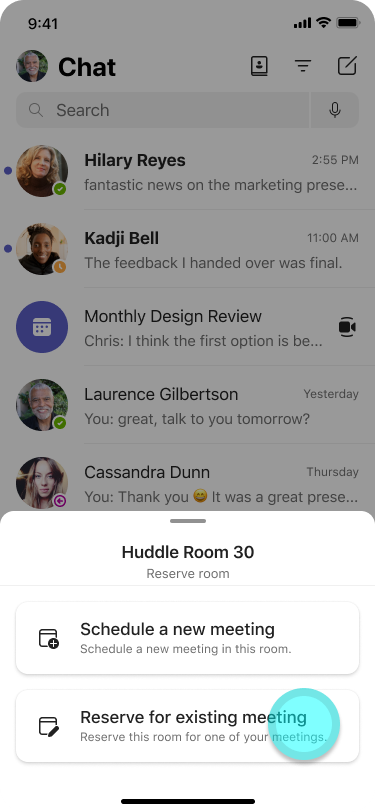
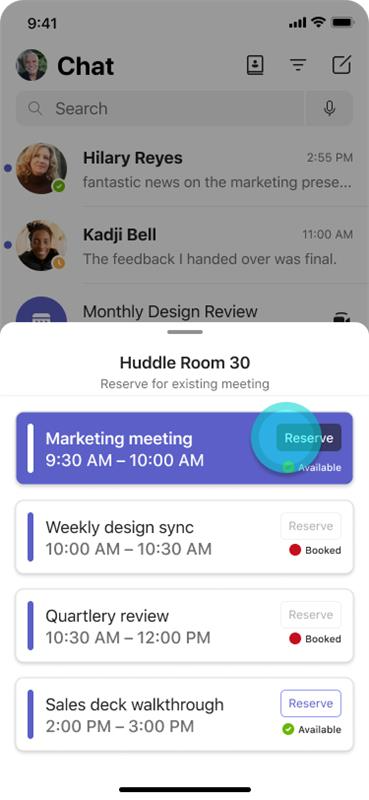
| Message Content | With this update, Teams Panels will support reserving a room using a QR code. This feature lets Microsoft Teams users book a room for meetings now, in the future, or add the room to an existing meeting by scanning a QR code on the scheduling panel and using the Teams app on their Android or iOS mobile phones.
All Teams Panels will have a QR code shown in the top left of the home screen. Panels users can either schedule a new meeting with the room pre-populated for them or easily see the room’s availability for their meetings and book the room with one click. This message is associated with Microsoft 365 Roadmap ID 129366 [When this will happen:] Rollout is expected to begin in early August and is expected to be complete by early September. [How this will affect your organization:] In order to access this feature, be sure to have the most up-to-date release of Teams Panels and check that your users have access to the latest version of the Teams app on their mobile phones. Please note the following:
You can disable this feature on Teams Panels under Settings > Device settings > Teams Admin Settings > Meetings. To reserve the room:
[What you need to do to prepare:]
To prepare for this incoming feature, we strongly recommend communicating this new feature to your users and share instructions if needed. A recommended scanner for this feature is the mobile system/OS scanner on mobile phones. However, for Android, the scanning may not work if your users have both work and personal profiles on their Android phones. In this case, users will need to add mobile system/OS scanner in the work profile. To do that, follow the steps below:
|
| Machine Translation | この更新プログラムでは、Teams パネルで QR コードを使用した会議室の予約がサポートされます。この機能を使用すると、Microsoft Teamsユーザーは、スケジュール パネルで QR コードをスキャンして Android または iOS 携帯電話で Teams アプリを使用して、現在または将来の会議の会議室を予約したり、既存の会議に会議室を追加したりできます。
すべてのチームパネルには、ホーム画面の左上にQRコードが表示されます。パネルユーザーは、会議室が事前に入力された状態で新しい会議をスケジュールするか、会議の会議室の空き状況を簡単に確認して、ワンクリックで会議室を予約できます。 このメッセージは、Microsoft 365 ロードマップ ID に関連付けられています129366 [これが起こるとき:] ロールアウトは8月上旬に開始され、9月上旬までに完了する予定です。 [これが組織に与える影響:] この機能にアクセスするには、Teams パネルの最新リリースを使用していることを確認し、ユーザーが携帯電話で最新バージョンの Teams アプリにアクセスできることを確認してください。 以下の点にご注意ください。
この機能は、[Teams パネル] の [設定] > [デバイス設定] > [Teams 管理者設定] > 会議] で無効にできます。 部屋を予約するには:
[準備するために必要なこと:]
この受信機能に備えるために、この新機能をユーザーに伝え、必要に応じて手順を共有することを強くお勧めします。 この機能に推奨されるスキャナーは、携帯電話のモバイル システム/OS スキャナーです。ただし、Android の場合、ユーザーが Android スマートフォンに仕事用プロファイルと個人用プロファイルの両方を持っている場合、スキャンが機能しない可能性があります。この場合、ユーザーは仕事用プロファイルにモバイル システム/OS スキャナーを追加する必要があります。これを行うには、以下の手順に従います。
|