SHD / MC Checker

MC672757 | Teams Meeting Add-in in Outlook Support for Multi-Tenant Multi-Account Scenarios


MC672757 | Teams Meeting Add-in in Outlook Support for Multi-Tenant Multi-Account Scenarios

Classification stayInformed
Last Updated 09/01/2023 22:41:07
Start Time 09/01/2023 22:40:48
End Time 10/14/2023 07:00:00
Message Content

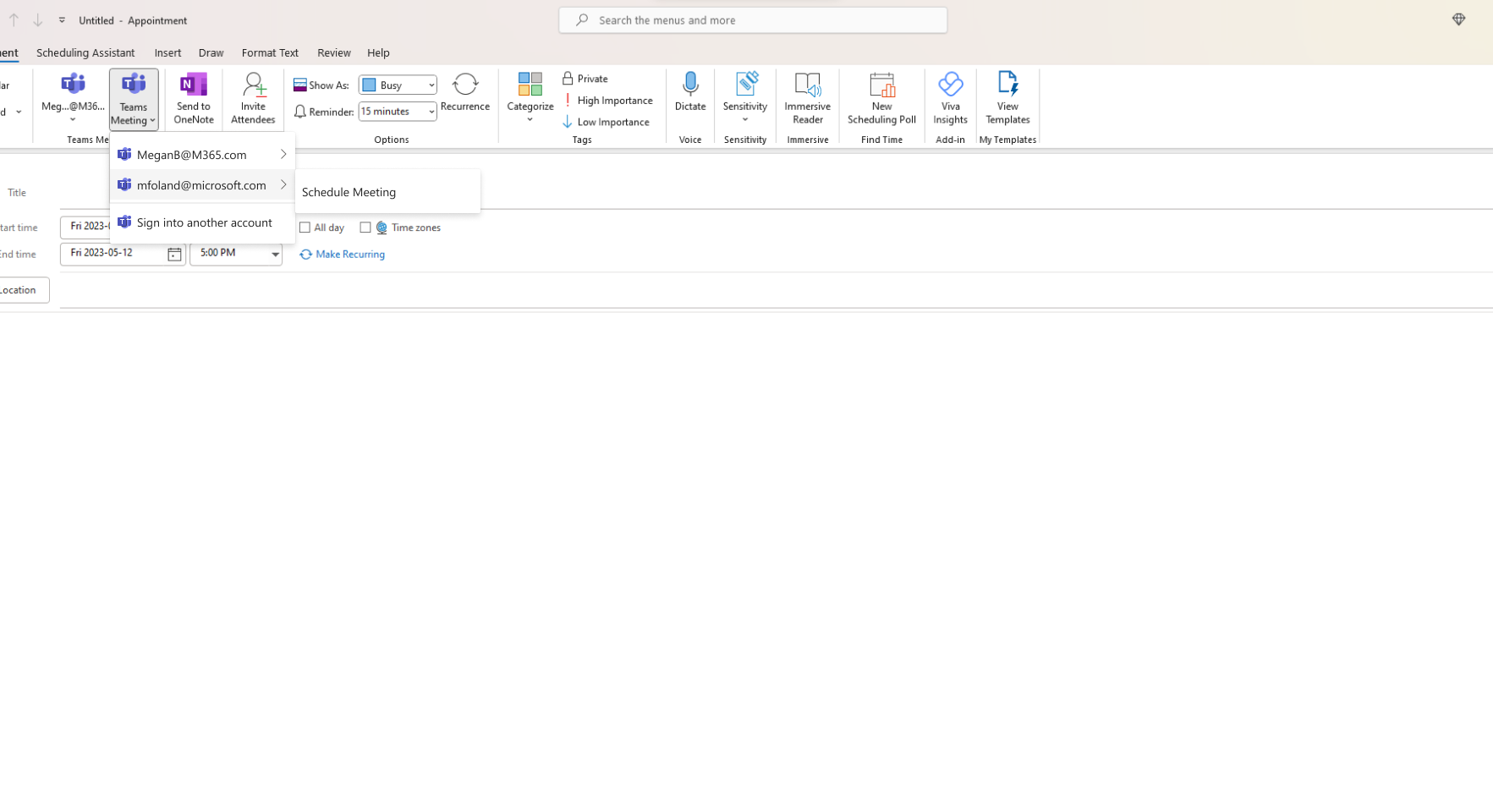
In parallel with the new Teams client supporting multi-tenant multi-account scenarios, Teams meeting add-in in Outlook will also start supporting the ability for users to switch between multiple tenants and accounts to schedule Teams meetings.

[When this will happen:]

This feature is available.

[How this will affect your organization:]

If Teams meeting scheduling is enabled in the tenant and if the user has the new Teams client installed, the user will have the ability to switch between their tenants or accounts to schedule a Teams meeting through add-in in Outlook.


Limitations:

  • This capability isn’t supported in Outlook Web or Outlook Mac yet.
  • The account selected in the Teams meeting add-in dropdown in Outlook must match the signed-in accounts in Teams before a user can schedule a Teams meeting. In the event that there are no signed-in accounts in Teams, the user must sign into Teams before they can schedule a Teams meeting through the add-in.
  • The account selected in the Teams meeting add-in dropdown in Outlook must match the signed-in accounts in Teams before the organizer or the co-organizer/s can access Teams meeting options of a meeting invite from Outlook.
  • Copying and pasting the meeting blob to a different message body will result in a broken scheduling experience. The user must schedule a new Teams meeting through the addin.
  • If the user has multiple scheduling windows opened in Outlook, we will honour the account selected in the Teams meeting add-in dropdown in Outlook.
  • If the user accidentally used the wrong account to schedule the Teams meeting, they must use Don’t Host Online ribbon to remove the existing meeting coordinates. Deleting the meeting coordinates will result in a broken scheduling experience.

[What you need to do to prepare:]

There is nothing you need to do to prepare.

Machine Translation

マルチテナント マルチアカウント シナリオをサポートする新しい Teams クライアントと並行して、Outlook の Teams 会議アドインは、ユーザーが複数のテナントとアカウントを切り替えて Teams 会議をスケジュールする機能のサポートも開始します。

[これが起こるとき:]

この機能は使用可能です。

[これが組織に与える影響:]

テナントで Teams 会議のスケジュールが有効になっていて、ユーザーが新しい Teams クライアントをインストールしている場合、ユーザーはテナントまたはアカウントを切り替えて、Outlook のアドインを使用して Teams 会議をスケジュールできます。


制限:

  • この機能は、Outlook Web または Outlook Mac ではまだサポートされていません。
  • ユーザーが Teams 会議をスケジュールする前に、Outlook の Teams 会議アドイン ドロップダウンで選択したアカウントが、Teams のサインイン アカウントと一致する必要があります。Teams にサインインしているアカウントがない場合、ユーザーはアドインを使用して Teams 会議をスケジュールする前に Teams にサインインする必要があります。
  • Outlook の Teams 会議アドイン ドロップダウンで選択したアカウントは、開催者または共同開催者が Outlook から会議出席依頼の Teams 会議オプションにアクセスする前に、Teams のサインイン アカウントと一致する必要があります。
  • 会議 BLOB をコピーして別のメッセージ本文に貼り付けると、スケジュール エクスペリエンスが壊れます。ユーザーは、アドインを使用して新しい Teams 会議をスケジュールする必要があります。
  • ユーザーが Outlook で複数のスケジュール ウィンドウを開いている場合は、Outlook の Teams 会議アドイン ドロップダウンで選択したアカウントが適用されます。
  • ユーザーが誤って間違ったアカウントを使用して Teams 会議をスケジュールした場合は、[オンラインでホストしない ] リボンを使用して 既存の会議座標を削除する必要があります。会議の座標を削除すると、スケジュール エクスペリエンスが壊れます。

[準備するために必要なこと:]

準備するためにあなたがする必要があるものは何もありません。