| MC718758 | Microsoft Purview | Data Loss Prevention: Turning on DLP analytics |
|---|
| Classification | stayInformed |
|---|---|
| Last Updated | 02/23/2024 23:21:36 |
| Start Time | 02/23/2024 23:21:02 |
| End Time | 05/31/2024 07:00:00 |
| Message Content |
In Microsoft Purview, Data Loss Prevention (DLP) analytics is a feature that enables you to analyze data protection challenges, gaps, policy, and posture enhancement possibilities in the organization. Use intelligent Purview features to explore these challenges and resolve them in a few easy steps. After you turn on analytics, you can review analytics and recommendations will be generated each week on the overview page of DLP. The two prioritized cards show top recommendations. View all recommendations shows all generated recommendations and their status, which enables admins to take action. This message is associated with Microsoft 365 Roadmap ID 173161. [When this will happen:] Public Preview: Rollout completed in late September 2023. We will begin rolling out mid-February 2024 and expected to complete by late February 2024. [How this will affect your organization:] Benefits
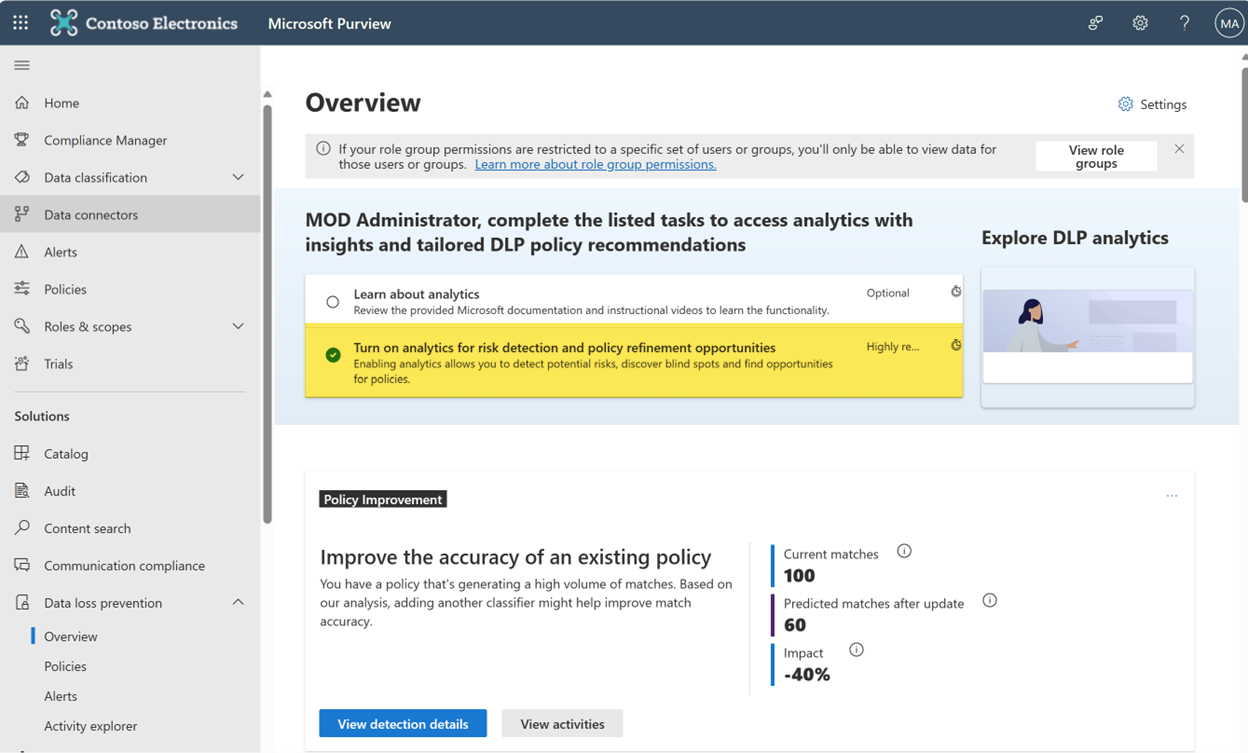
To turn on Analytics Step 1: In Purview, go to Data loss prevention on the left navigation and select Overview: The task pane shows an option to turn on Analytics, as shown in screenshot 1. Please note after turning on Analytics, it takes up to seven days to generate recommendations. This feature leverages Purview’s intelligent capabilities to understand the logs and telemetry like classification, activity, user profile, policy configuration, alerts, and incident information to generate recommendations. Screenshot 1:
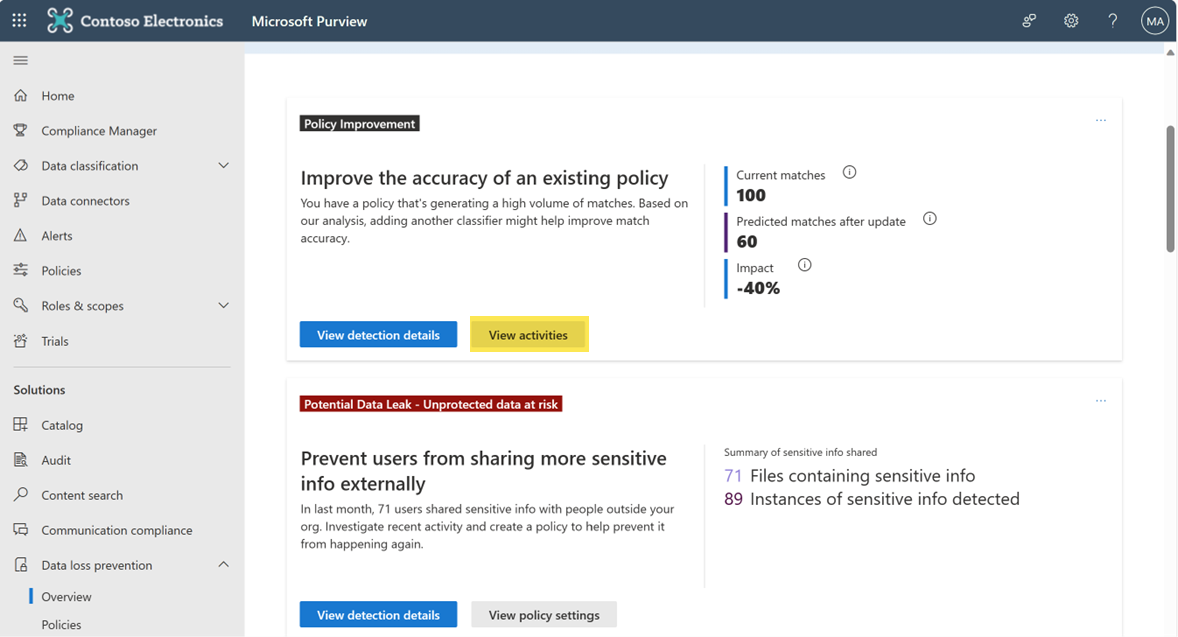
Step 2: Seven days after turning on Analytics, prioritized cards will be generated. The two categories of recommendations include:
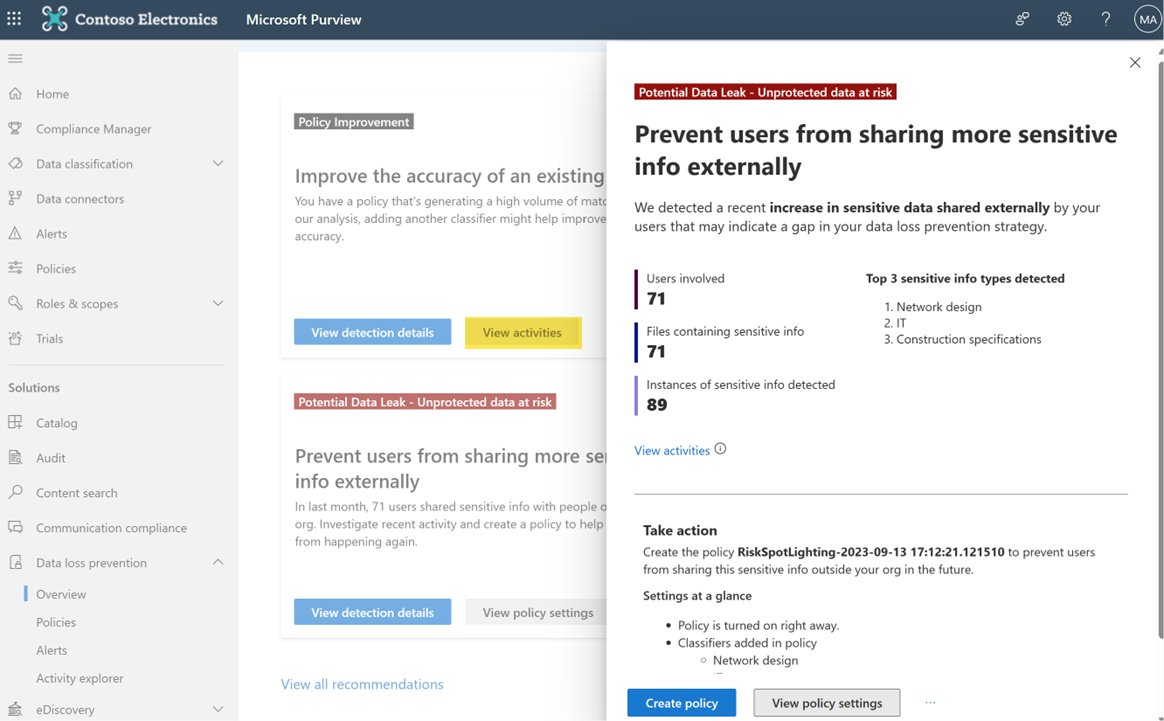
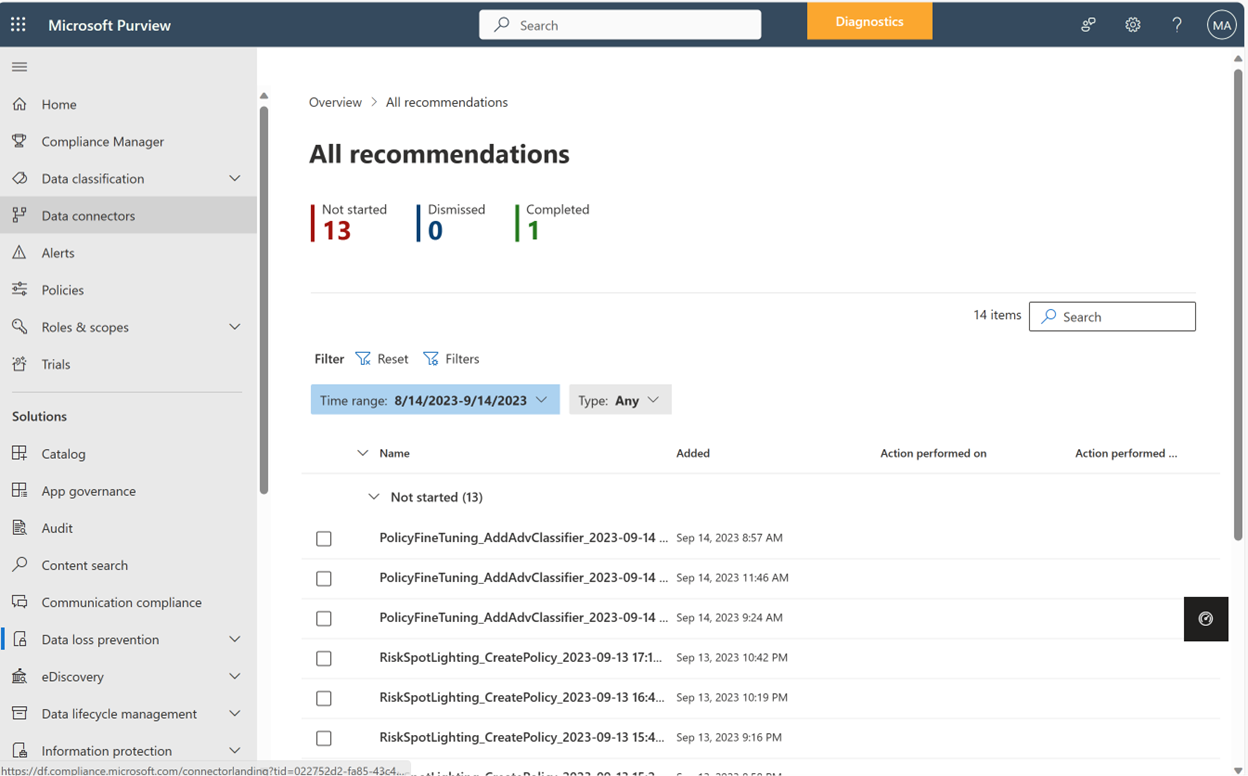
When you select View detection details, a side card opens that provides more details on risks found (screenshot 2). Use View activities to review supporting evidence. The side pane has a preconfigured policy for mitigating risk with the right configurations (screenshot 3). You can create a new policy or update the preconfigured policy with a few clicks. Analytics uses an intelligent algorithm that examines your tenant, identifies blind spots or risks that require urgent attention, and suggests suitable mitigations. The recommendations are prioritized by highest impact. The top two recommendations are shown as cards and the rest are available as a prioritized list for admins to take necessary actions. Screenshots 2 and 3: Step 3: View all recommendations generated for your tenant and take actions. Recommendations are generated at a weekly cadence and persist in the queue for four weeks unless admins action or dismiss them. For policy improvement recommendations that require an update to existing policies, a copy of the policy is automatically created when an admin actions the recommendation. Screenshot 4:
Disabling Analytics From the Task pane on the DLP overview page, you can disable Analytics in the Manage settings pane. After you disable Analytics, it might take up to 24 hours for the analytics to stop running. [What you need to do to prepare:] No action is needed from you to prepare for this rollout. You may want to notify your users about this change and update any relevant documentation as appropriate. To learn more: Get started with data loss prevention analytics | Microsoft Learn |
| Machine Translation |
Microsoft Purview のデータ損失防止 (DLP) 分析は、組織内のデータ保護の課題、ギャップ、ポリシー、および態勢強化の可能性を分析できる機能です。インテリジェントな Purview 機能を使用して、これらの課題を調査し、いくつかの簡単な手順で解決します。 分析を有効にすると、分析を確認でき、DLP の概要ページで毎週推奨事項が生成されます。優先順位付けされた 2 つのカードには、上位の推奨事項が表示されます。 すべてのレコメンデーションを表示 生成されたすべてのレコメンデーションとそのステータスが表示されるため、管理者はアクションを実行できます。 このメッセージは、Microsoft 365 ロードマップ ID 173161に関連付けられ ています。 [これがいつ起こるか:] パブリック プレビュー: ロールアウトは 2023 年 9 月下旬に完了しました。 2024 年 2 月中旬にロールアウトを開始し、2024 年 2 月下旬までに完了する予定です。 [これが組織に及ぼす影響:] 利点
Analytics を有効にするには 手順 1: Purview で、左側のナビゲーションの [ データ損失防止 ] に移動し、[ 概要] を選択します。 作業ウィンドウには、スクリーンショット 1 に示すように、分析を有効にするオプションが表示されます。 アナリティクスを有効にした後、最適化案が生成されるまでに最大 7 日かかることに注意してください。この機能は、Purview のインテリジェントな機能を利用して、分類、アクティビティ、ユーザー プロファイル、ポリシー構成、アラート、インシデント情報などのログとテレメトリを理解し、レコメンデーションを生成します。 スクリーンショット1:
ステップ 2: アナリティクスを有効にしてから 7 日後に、優先カードが生成されます。 推奨事項の 2 つのカテゴリには、次のものがあります。
[ 検出の詳細を表示 ] を選択すると、サイド カードが開き、検出されたリスクの詳細が表示されます (スクリーンショット 2)。 [アクティビティの表示] を使用して、裏付けとなる証拠を確認します。サイドペインには、適切な設定でリスクを軽減するための事前設定済みのポリシーがあります(スクリーンショット3)。数回クリックするだけで、 新しいポリシーを作成したり、事前設定されたポリシーを更新し たりできます。 分析では、テナントを調べ、緊急の対応が必要な盲点やリスクを特定し、適切な軽減策を提案するインテリジェントなアルゴリズムを使用します。推奨事項は、影響が大きい順に優先順位が付けられます。上位 2 つの推奨事項はカードとして表示され、残りは管理者が必要なアクションを実行するための優先順位付きリストとして使用できます。 スクリーンショット 2 と 3: 手順 3: テナントに対して生成されたすべての推奨事項を表示し、アクションを実行します。 レコメンデーションは毎週生成され、管理者がアクションまたは却下しない限り、4 週間キューに保持されます。 既存のポリシーの更新が必要なポリシー改善の推奨事項の場合、管理者が推奨事項を実行すると、ポリシーのコピーが自動的に作成されます。 スクリーンショット4:
Analytics の無効化 DLP の概要ページの [タスク] ウィンドウから、[ 設定の管理 ] ウィンドウで Analytics を無効にすることができます。Analytics を無効にした後、分析の実行が停止するまでに最大 24 時間かかる場合があります。 [準備に必要なこと:] このロールアウトの準備のために、お客様による操作は必要ありません。この変更についてユーザーに通知し、必要に応じて関連ドキュメントを更新することをお勧めします。 |