| MC679738 | (Updated) Microsoft Teams: Automatic Updates for the Teams app on Android-based Teams Devices |
|---|
| Classification | stayInformed |
|---|---|
| Last Updated | 03/27/2024 20:49:44 |
| Start Time | 10/07/2023 02:17:23 |
| End Time | 05/20/2024 08:00:00 |
| Message Content |
Updated March 27, 2024: We have updated the rollout timeline below. Thank you for your patience. Android-based Teams devices will start receiving automatic updates for Teams app, in addition to firmware.
This message is associated with Microsoft 365 Roadmap ID 163598
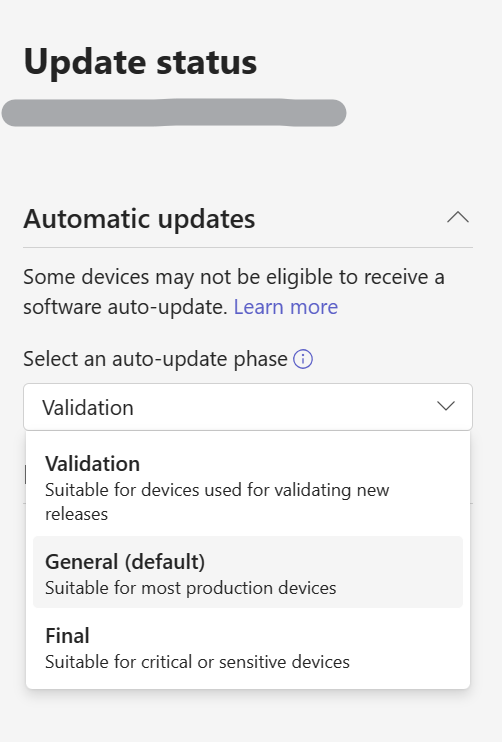
[When this will happen:] General Availability (Worldwide and GCC) Rollout will begin in late October 2023 and is expected to be complete by early April 2024 (previously mid-March). [How this will affect your organization:] The Android-based Teams devices (Teams Rooms on Android, Teams Phones, Panels, and Displays) will start receiving automatic updates of the Teams app. The overall internal guardrails and features to manage the updates remain similar to those for automatic firmware updates. Administrators can find them on pages under Teams devices in Teams admin center. The following capabilities can be used to manage these updates: Update phases can be found after selecting the Update option after selecting a device.
For Teams app automatic updates
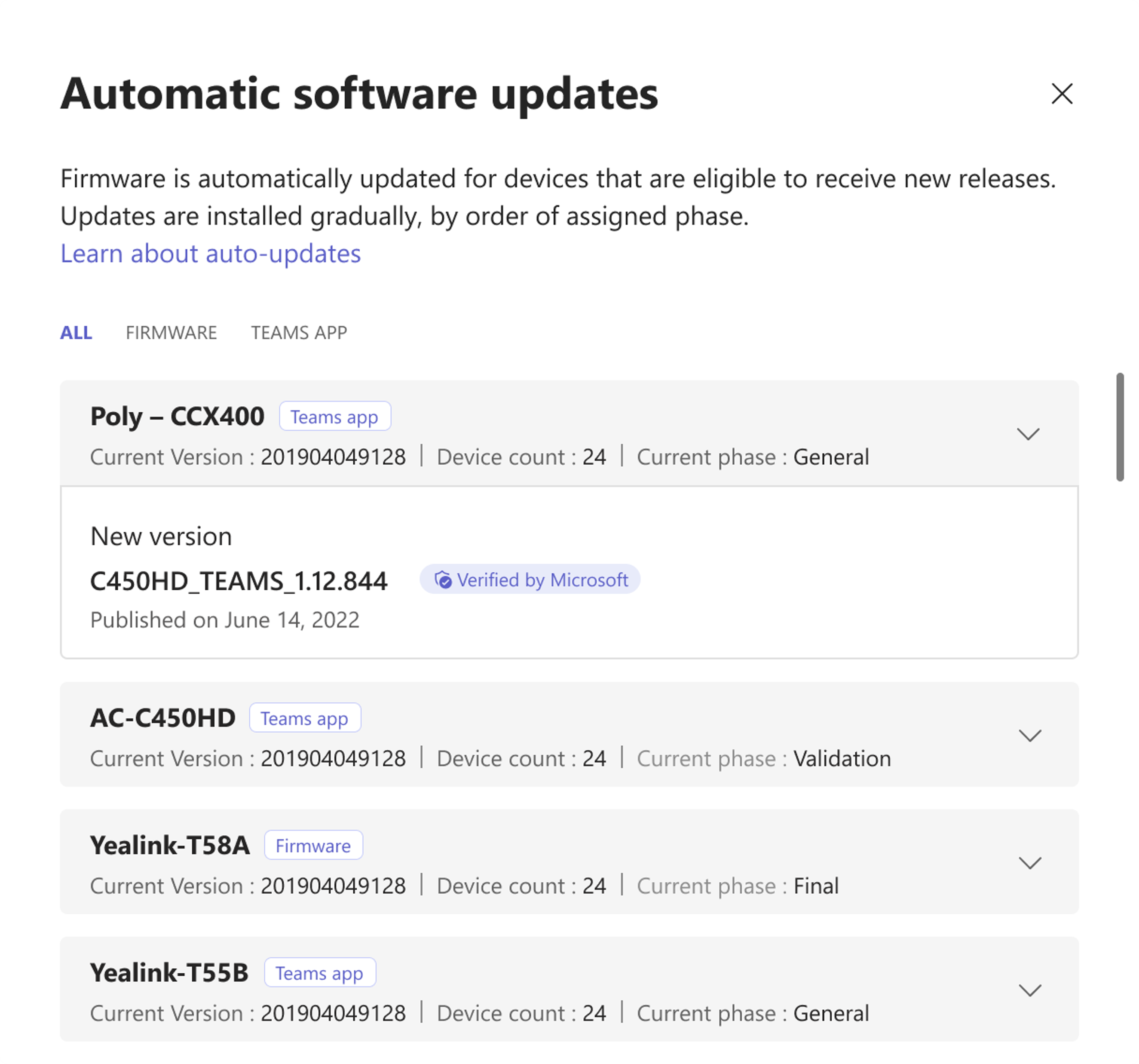
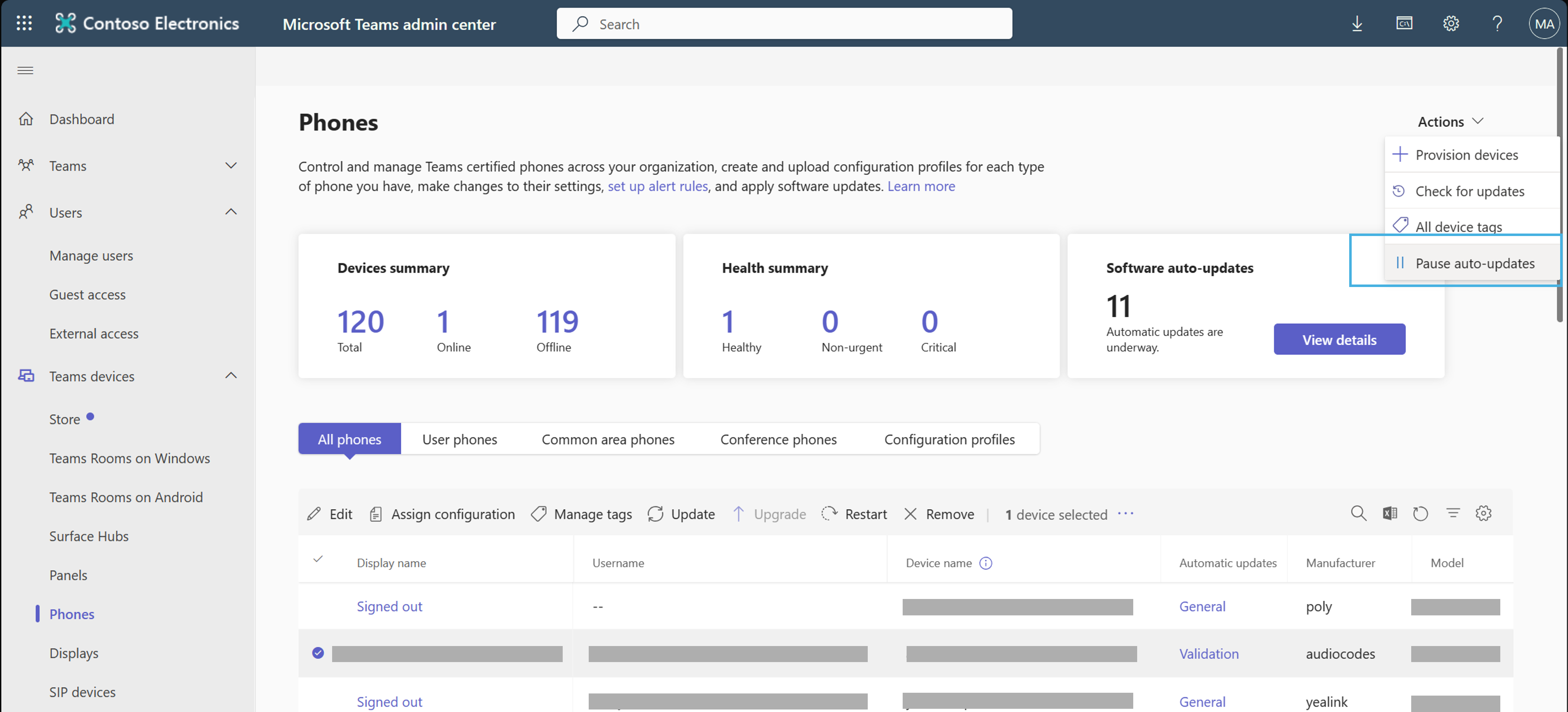
‘Software auto-update‘ column in the device inventory table will indicate the phase assigned to the device. You can select the phase to quickly navigate to the Update section. ‘Software auto-update‘ widget on device inventory pages shows any active updates that are going on and details for them.
Temporarily Pause (and Resume) auto-updates – under the Actions menu
Software versions released by Microsoft are marked as “Verified by Microsoft“.
Refer to Update Microsoft Teams devices remotely for more details about auto-updates.
[What you need to do to prepare:]
Before this change takes effect, administrators should ensure that their devices are assigned the Update Phase of their choice. When this change takes effect, auto-updates will start happening following the configured update phases. In case you need to validate something on the devices, you can choose to pause the auto-updates temporarily. |
| Machine Translation |
2024 年 3 月 27 日更新: 以下のロールアウト タイムラインを更新しました。何卒ご理解のほどよろしくお願いいたします。 Android ベースの Teams デバイスは、ファームウェアに加えて、Teams アプリの自動更新の受信を開始します。
このメッセージは、Microsoft 365 ロードマップ ID 163598に関連付けられています
[これがいつ起こるか:] 一般提供 (全世界および GCC) のロールアウトは 2023 年 10 月下旬に開始され、2024 年 4 月上旬 (以前は 3 月中旬) までに完了する予定です。 [これが組織に及ぼす影響:] Android ベースの Teams デバイス (Android 上のTeams Rooms、Teams 電話、パネル、ディスプレイ) は、Teams アプリの自動更新の受信を開始します。アップデートを管理するための全体的な内部ガードレールと機能は、ファームウェアの自動アップデートの場合と似ています。管理者は、Teams 管理センターの Teams デバイスの下のページでそれらを見つけることができます。 これらの更新プログラムを管理するには、次の機能を使用できます。 更新フェーズ は、デバイスを選択した後に [ 更新 ] オプションを選択すると表示されます。
Teams アプリの自動更新 の場合
デバイス インベントリ テーブルの [ソフトウェアの自動更新] 列には、デバイスに割り当てられたフェーズが表示されます。フェーズを選択すると、[ 更新 ] セクションにすばやく移動できます。 デバイス インベントリ ページの [ソフトウェアの自動更新] ウィジェットには、進行中のアクティブな更新とその詳細が表示されます。
自動更新を一時的に 一時停止 (および再開)する – 「アクション 」メニュー
Microsoftがリリースしたソフトウェアバージョンには、「Verified by Microsoft」と記載されています。
自動更新の詳細については、「 Microsoft Teams デバイスをリモートで更新 する」を参照してください。
[準備に必要なこと:]
この変更を有効にする前に、管理者は、選択した更新フェーズがデバイスに割り当てられていることを確認する必要があります。この変更が有効になると、構成された更新フェーズの後に自動更新が開始されます。デバイスで何かを検証する必要がある場合は、自動更新を一時的に一時停止することを選択できます。 |