| MC711025 | (Updated) Microsoft 365 Groups: Users can now choose to switch to the new Groups experience in Outlook on the web |
|---|
| Classification | stayInformed |
|---|---|
| Last Updated | 04/19/2024 19:28:33 |
| Start Time | 01/29/2024 23:55:49 |
| End Time | 06/17/2024 07:00:00 |
| Message Content |
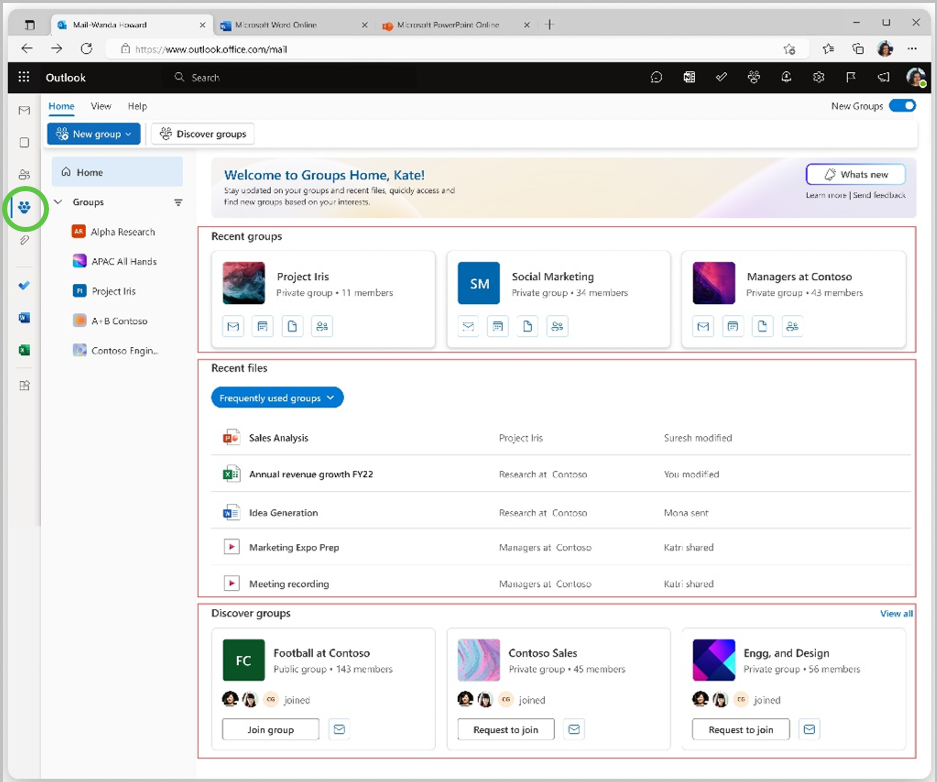
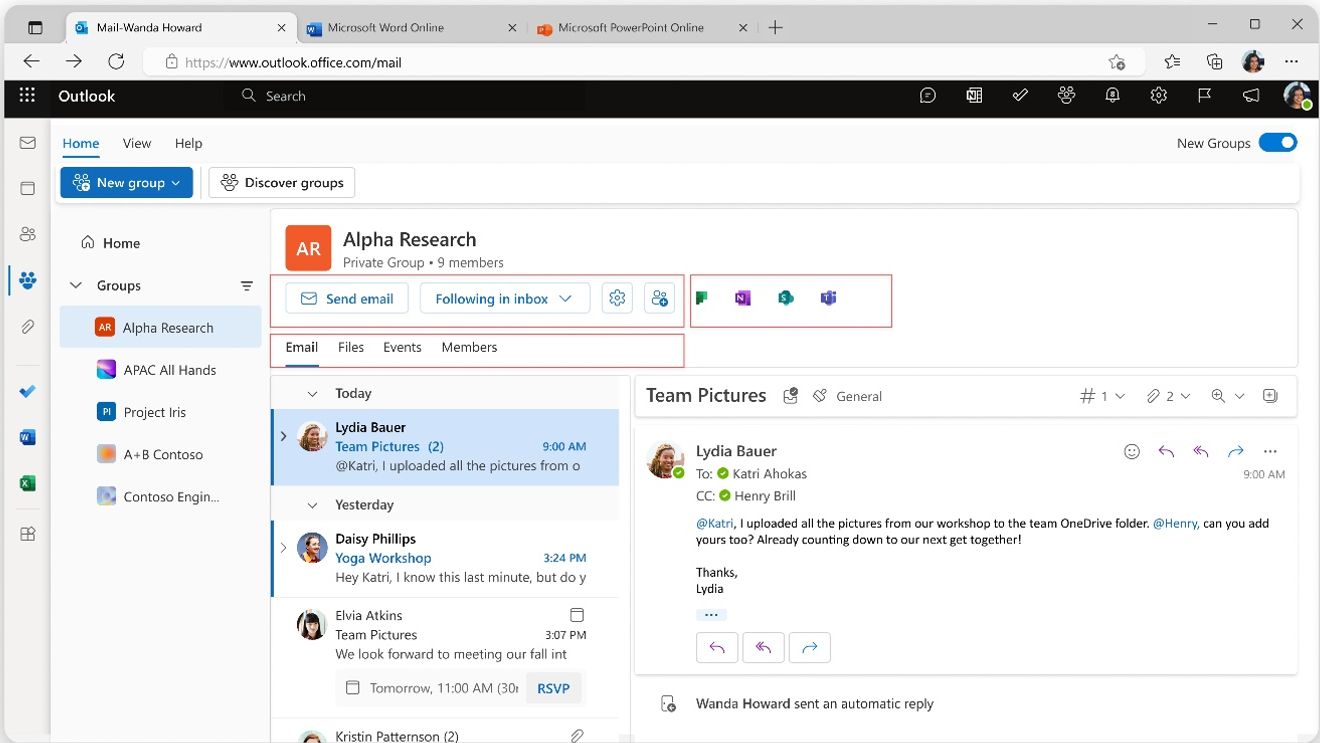
Updated April 19, 2024: We have updated the rollout timeline below. Thank you for your patience. We are excited to announce that users will be able to choose to transition from the old Microsoft 365 Groups in Outlook to the new Groups in Outlook on the web and the new Outlook for Windows. The transition is optional for users, who can switch back to old Groups if desired. [When this will happen:] Worldwide: We will begin rolling out early March 2024 (previously mid-February) and expect to complete by mid-May 2024 (previously early April). [How this will affect your organization:] About new Groups Outlook now has a new home for Microsoft 365 Groups: one place to connect, communicate, and collaborate with your team. New Groups provides a central destination where users can get critical information from their groups. Benefits of the new Groups experience include:
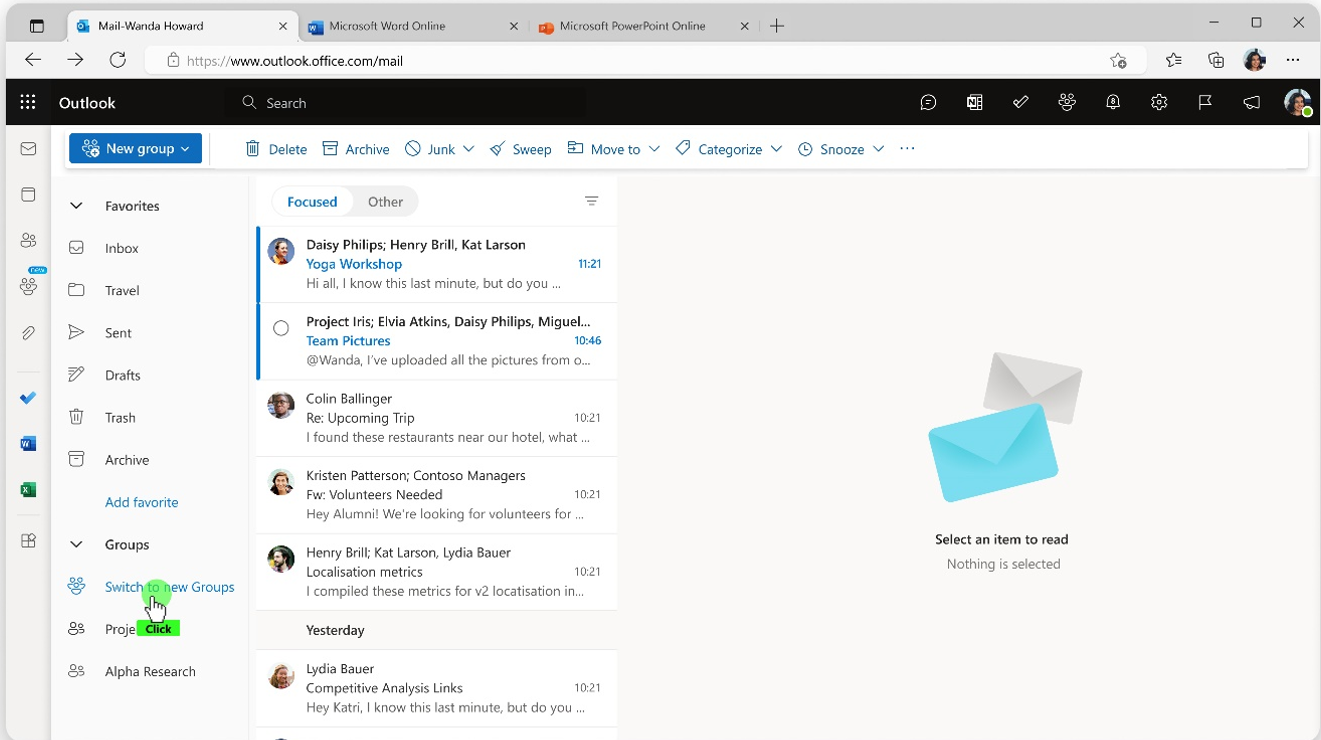
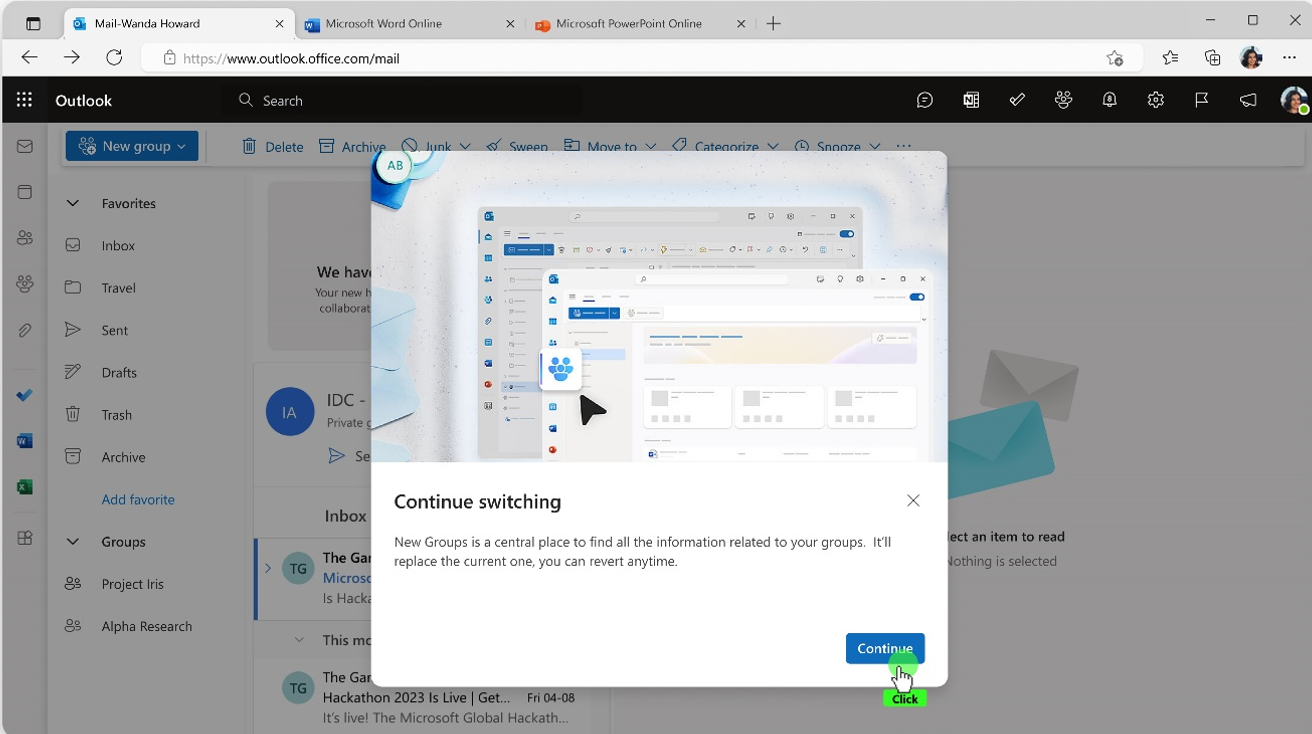
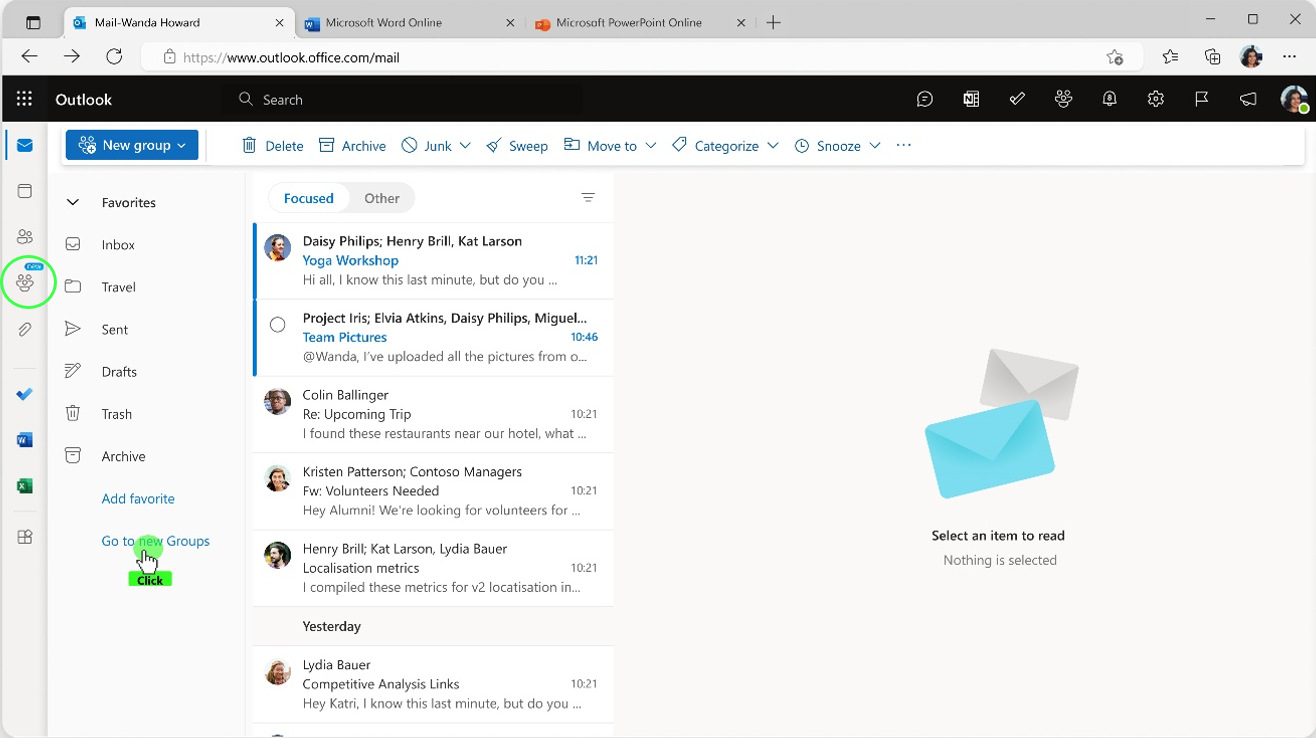
How to switch to new Groups Users can choose to transition to new Outlook Groups. 1. By default, both old and new Groups are live. 2. After users go to the left navigation in Outlook and select Groups, they can see the Switch to new groups option.
3. After the user switches to new Groups, the new Groups experience becomes the default, and the old Groups experience is hidden from the user. Users can always switch back to old Groups.
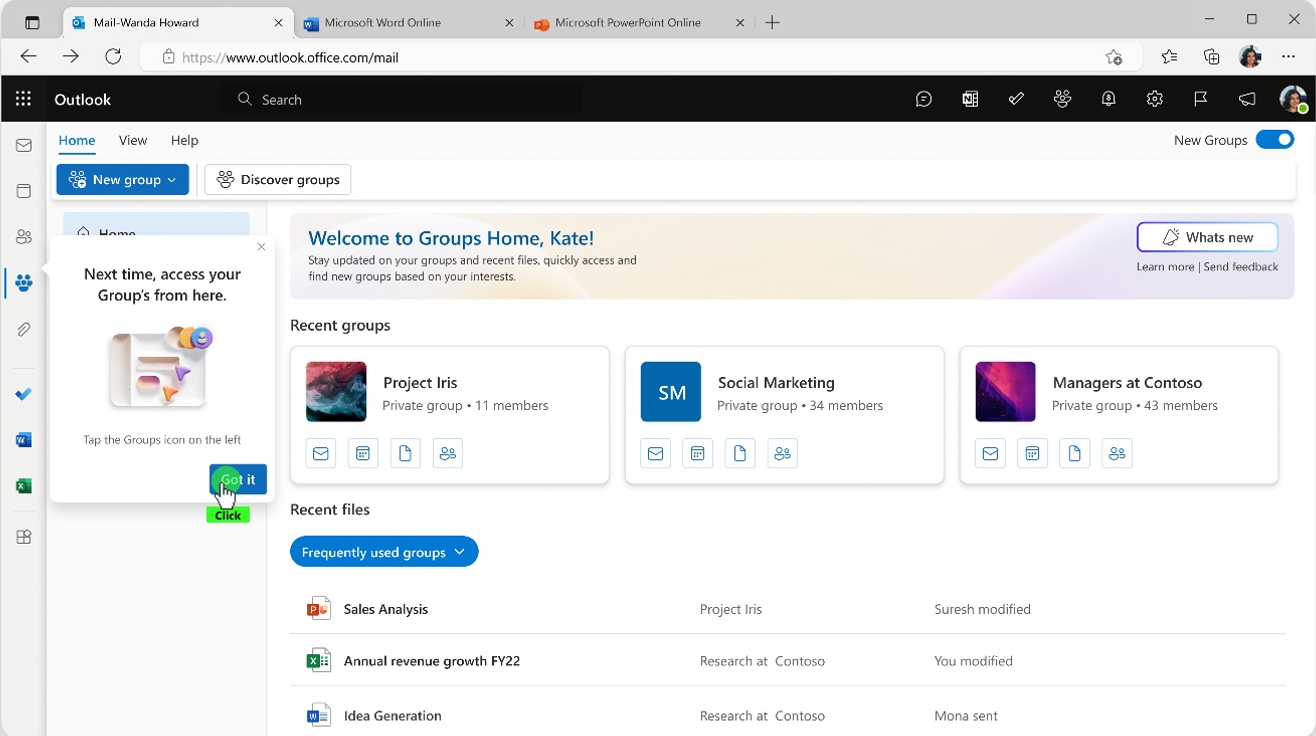
4. After switching to new Groups, users can access Groups from the left navigation, by selecting the Groups icon below the People icon or the Go to new Groups link.
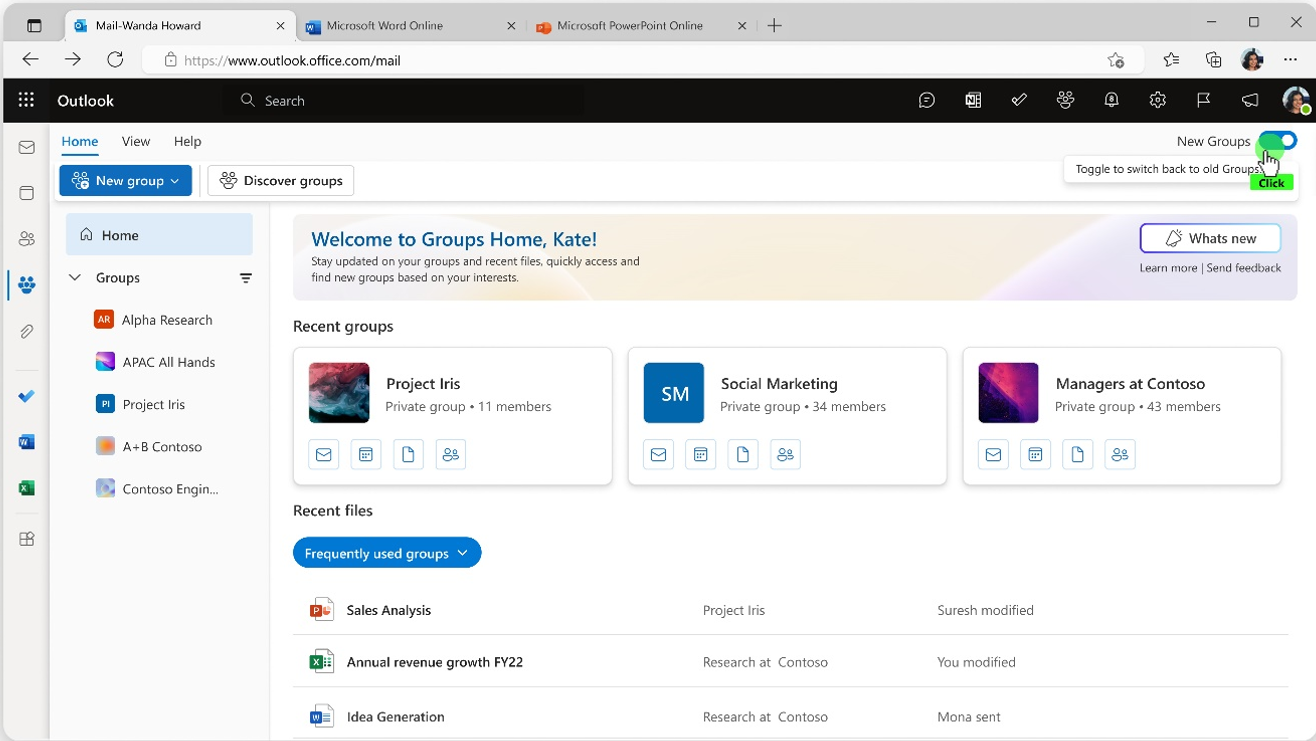
Switching back to old Groups To switch back to old Groups, turn off the New Groups toggle at the top right. When users switch back to old Groups, users will be presented with an optional survey and then will be taken to old Groups.
[What you need to do to prepare:] No action is needed to prepare for this change. You may want to notify your users about this change and update any relevant documentation as appropriate. For more information about Microsoft 365 Groups in Outlook, see Outlook Groups. FAQs 1. Can users opt out of the transition to new Groups? Is transition flow applicable for all the versions of Outlook? There is no need for an opt-out because the transition to New Groups is optional. Users can use old Groups if desired. If they opt into new Groups, their old Groups will be hidden. All old Groups information is saved in new Groups, and users can switch back to old Groups. The transition is only applicable for Outlook on the web and the new Outlook for Windows. 2. What are the improvements in new Groups? Major improvements include.
3. How to access new Groups? In Outlook on the Web and the New Outlook for Windows, New Groups can be accessed from the Navigation Bar on the left margin, below the people icon. The new Groups experience is not available for Mac. In Windows, this can be accessed from the applet drawer in the Navigation Bar. 4. Is new Groups available in all versions of Outlook? New Groups is available for all users in Outlook for the web and New Outlook for Windows. New Groups is available in Outlook for Windows for Build Version 16.0.16714.10000 or higher till Production CC/MEC. New Groups is not available on Mac. |
| Machine Translation |
2024 年 4 月 19 日更新: 以下のロールアウト タイムラインを更新しました。何卒ご理解のほどよろしくお願いいたします。 ユーザーが Outlook の古い Microsoft 365 グループから、Outlook on the webの新しい グループ と新しい Outlook for Windows に移行できるようになったことをお知らせします。この移行は、必要に応じて古い グループ に戻すことができるユーザーのオプションです。 [これがいつ起こるか:] 全世界: 2024 年 3 月上旬 (以前は 2 月中旬) にロールアウトを開始し、2024 年 5 月中旬 (以前は 4 月上旬) までに完了する予定です。 [これが組織に及ぼす影響:] 新しいグループについて Outlook には、Microsoft 365 グループの新しいホームがあり、チームとつながり、コミュニケーションを取り、共同作業するための 1 つの場所になりました。新しい グループは 、ユーザーがグループから重要な情報を取得できる一元的な宛先を提供します。新しい グループ 機能には、次のようなメリットがあります。
新しいグループに切り替える方法 ユーザーは、新しい Outlook グループに移行することを選択できます。 1.デフォルトでは、古いグループと新しい グループ の両方がライブです。 2. ユーザーがOutlookの左側のナビゲーションに移動して [グループ]を選択すると、[ 新しいグループに切り替え る]オプションが表示されます。
3. ユーザーが新しい グループに切り替えると、新しい グループ エクスペリエンスがデフォルトになり、古い グループの エクスペリエンスはユーザーに表示されません。ユーザーはいつでも以前のグループに戻すことができます 。
4. 新しいグループに切り替えた後、ユーザーは左側のナビゲーションから [ユーザー] アイコンの下にある [グループ] アイコンまたは [新しいグループに移動] リンクを選択して、グループにアクセスできます。
以前のグループに戻す 以前の グループに戻すには、右上の [ 新しいグループ ] トグルをオフにします。ユーザーが 以前のグループに戻ると、ユーザーにはオプションのアンケートが表示され、 古いグループに移動します。
[準備に必要なこと:] この変更に備えるためのアクションは必要ありません。この変更についてユーザーに通知し、必要に応じて関連ドキュメントを更新することをお勧めします。 Outlook の Microsoft 365 グループの詳細については、「 Outlook グループ」を参照してください。 よくあるご質問(FAQ) 1. ユーザーは新しい グループへの移行をオプトアウトできますか?移行フローは Outlook のすべてのバージョンに適用されますか? 新しいグループへの移行はオプションであるため、オプトアウトする必要はありません。ユーザーは、必要に応じて古いグループを使用できます。新しいグループにオプトインすると、古いグループは 非表示になります。古いグループ情報はすべて新しいグループに保存され、 ユーザーは古いグループに戻すことができます。移行は、Outlook on the webと新しいOutlook for Windowsにのみ適用されます。 2. 新しい グループの改善点は何ですか? 主な改善点は次のとおりです。
3. 新しいグループにアクセスするには? Outlook on the web と新しい Outlook for Windows では、ユーザー アイコンの下の左余白のナビゲーション バーから新しいグループにアクセスできます。新しいグループ機能は Mac ではご利用いただけません。Windowsでは、ナビゲーションバーのアプレットドロワーからアクセスできます。 4. 新しい グループは Outlook のすべてのバージョンで使用できますか? 新しい グループは 、Outlook for the webと新しいOutlook for Windowsのすべてのユーザーが使用できます。新しいグループは、ビルド バージョン 16.0.16714.10000 以降の Outlook for Windows で、運用 CC/MEC まで使用できます。新しいグループは Mac では利用できません。 |