| MC729718 | (Updated) Microsoft OneDrive for the web: Create with templates |
|---|
| Classification | stayInformed |
|---|---|
| Last Updated | 05/17/2024 20:04:45 |
| Start Time | 03/09/2024 19:12:38 |
| End Time | 07/08/2024 07:00:00 |
| Message Content |
Updated May 17, 2024: We have updated the rollout timeline below. Thank you for your patience. We’re refreshing the file creation experience in OneDrive for the web. Soon, when you select the Add new button, you will have the option to create a new blank file or to choose from high-quality, beautifully designed templates in Microsoft Word, Excel and PowerPoint to jumpstart your work. You’ll also be able to create new files using your company templates. This message is associated with Microsoft 365 Roadmap ID 363474.
[When this will happen:]
Note: Some users may see these features before other users within the same organization.
Targeted Release: We will begin rolling out early March and expect to complete by late March 2024.
General Availability (Worldwide): We will begin rolling out late March and expect to complete by late May 2024 (previously early May).
[How this will affect your organization:]
When this change rolls out, you’ll see a refreshed experience when you select Add New in OneDrive for the web. You’ll continue to be able to upload files and folders and create new files and folders, just as before. Now you’ll also be able to create new files from templates and easily choose where your new files will be stored.
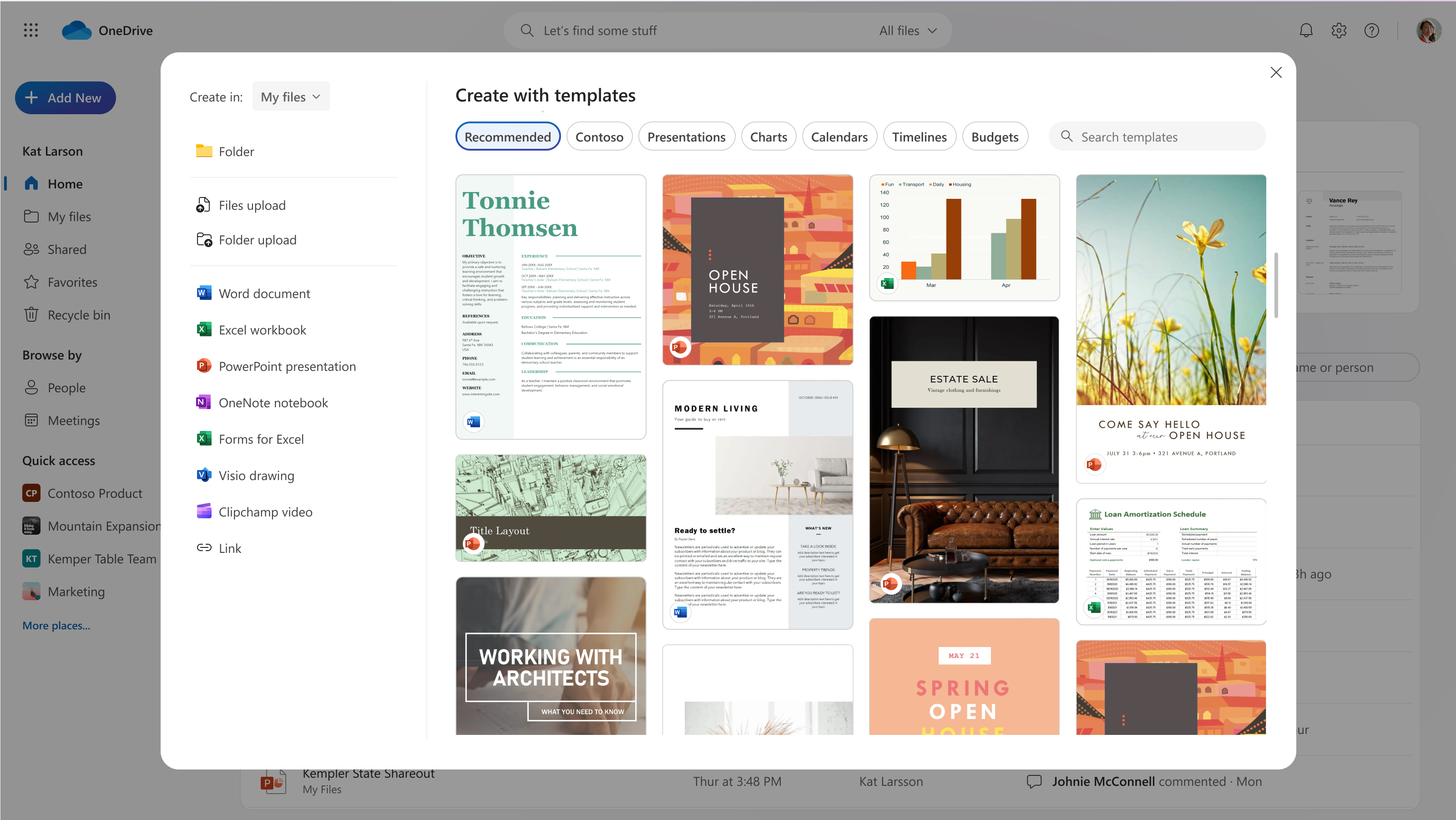
Create with templates
We’ve designed and curated a vast selection of templates to help you and your users get a jump start on work. You can browse templates by category (for example, Presentations) or search for a specific template. You can preview each template and create a new file from it in one click or navigate to the template details page for more information.
If your tenant has templates stored in an organizational asset library, these templates also will be available. You’ll see a separate category for your tenant’s templates listed after the Recommended category.
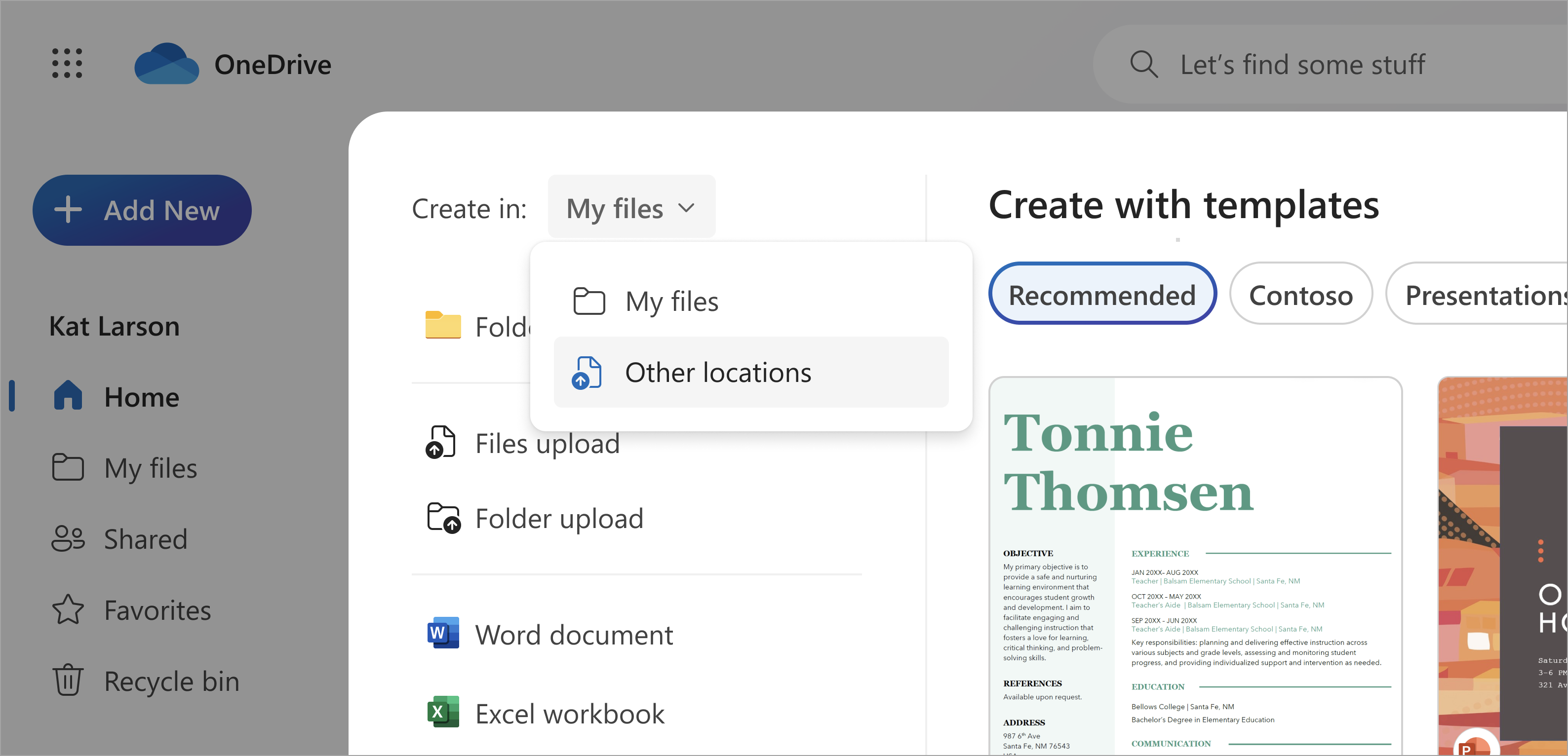
Select a Location You can choose where your new file is created with a simple dropdown. The default location will continue to be My files, but you can select a new location if you want to create in a specific folder or in a Document library in Quick access. If you’ve selected Add New from inside a folder, the new file will be created in that folder.
[What you need to do to prepare:] No action is needed from admins to prepare for this rollout. You may want to notify your users about this change and update any relevant documentation as appropriate. Learn more: Create an organization assets library – SharePoint in Microsoft 365 | Microsoft Learn
|
| Machine Translation |
2024 年 5 月 17 日更新: 以下のロールアウト タイムラインを更新しました。何卒ご理解のほどよろしくお願いいたします。 OneDrive for the webのファイル作成エクスペリエンスを更新しています。すぐに、[ 新規追加 ]ボタンを選択すると、新しい空白ファイルを作成するか、Microsoft Word、Excel、PowerPointの高品質で美しくデザインされたテンプレートから選択して、作業をすぐに開始するオプションが表示されます。また、会社のテンプレートを使用して新しいファイルを作成することもできます。 このメッセージは、Microsoft 365 ロードマップ ID 363474に関連付けられ ています。
[これがいつ起こるか:]
注: 一部のユーザーには、同じ組織内の他のユーザーよりも先にこれらの機能が表示される場合があります。
対象指定リリース: 3 月上旬にロールアウトを開始し、2024 年 3 月下旬までに完了する予定です。
一般提供 (全世界): 3 月下旬にロールアウトを開始し、2024 年 5 月下旬 (以前は 5 月上旬) までに完了する予定です。
[これが組織に及ぼす影響:]
この変更がロールアウトされると、OneDrive for the webで [ 新規追加 ] を選択すると、更新されたエクスペリエンスが表示されます。これまでと同様に、ファイルやフォルダをアップロードしたり、新しいファイルやフォルダを作成したりできます。テンプレートから新しいファイルを作成し、新しいファイルの保存場所を簡単に選択できるようになりました。
テンプレートで作成
私たちは、あなたとあなたのユーザーがすぐに仕事を始めることができるように、膨大な数のテンプレートを設計およびキュレーションしました。テンプレートは、カテゴリ別 ( プレゼンテーションなど) で参照したり、特定のテンプレートを検索したりできます。各テンプレートをプレビューし、ワンクリックで新しいファイルを作成するか、テンプレートの詳細ページに移動して詳細を確認できます。
テナントに組織の資産ライブラリに格納されているテンプレートがある場合は、これらのテンプレートも使用できます。テナントのテンプレートの別のカテゴリが [推奨 ] カテゴリの後に一覧表示されます。
場所を選択 新しいファイルを作成する場所は、簡単なドロップダウンで選択できます。既定の場所は引き続き [マイ ファイル] ですが、クイック アクセスの特定のフォルダーまたはドキュメント ライブラリに作成する場合は、新しい場所を選択できます。フォルダー内から [ 新規追加 ] を選択した場合は、そのフォルダーに新しいファイルが作成されます。
[準備に必要なこと:] このロールアウトを準備するために管理者によるアクションは必要ありません。この変更についてユーザーに通知し、必要に応じて関連ドキュメントを更新することをお勧めします。 詳細情報: 組織の資産ライブラリを作成する – Microsoft 365 の SharePoint |Microsoft Learn (英語)
|