| MC783215 | (Updated) Microsoft OneDrive: Annotate PDFs with text boxes |
|---|
| Classification | stayInformed |
|---|---|
| Last Updated | 06/06/2024 21:39:52 |
| Start Time | 04/22/2024 21:52:51 |
| End Time | 09/02/2024 07:00:00 |
| Message Content |
Updated June 6, 2024: We have updated the rollout timeline below. Thank you for your patience. This new Microsoft OneDrive feature allows you to annotate and save PDF files with text boxes when the files are stored in Microsoft OneDrive and Microsoft SharePoint.
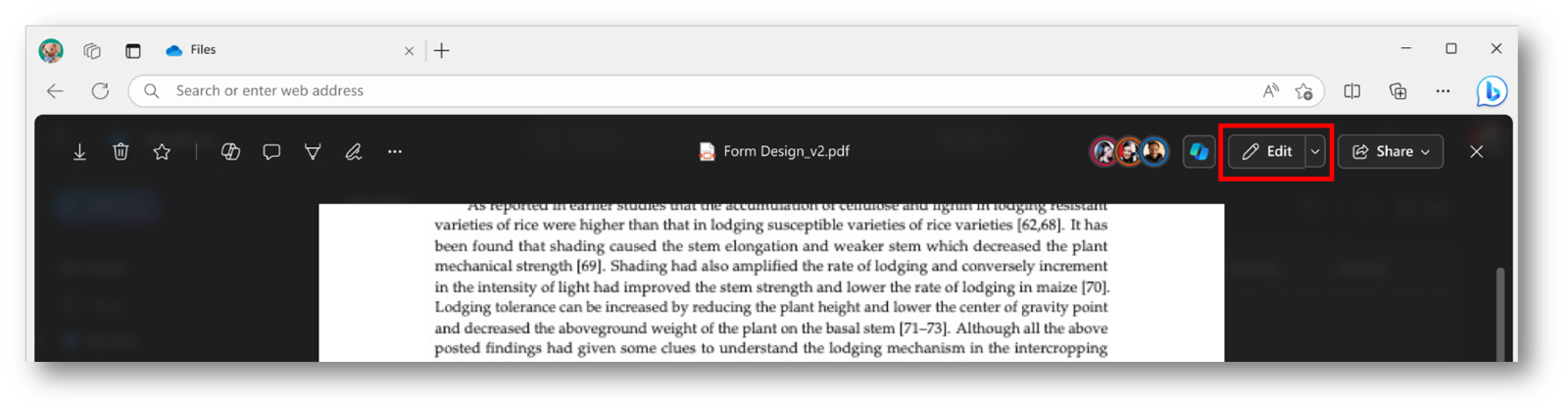
This message is associated with Microsoft 365 Roadmap ID 387807 [When this will happen:] General Availability (Worldwide, GCC, GCC High, DoD): We will begin rolling out late June 2024 (previously late May) and expect to complete by late July 2024 (previously late June). [How this will affect your organization:] Users can access the annotation feature by opening the PDF in File Viewer and selecting Edit. To add text, follow these steps:
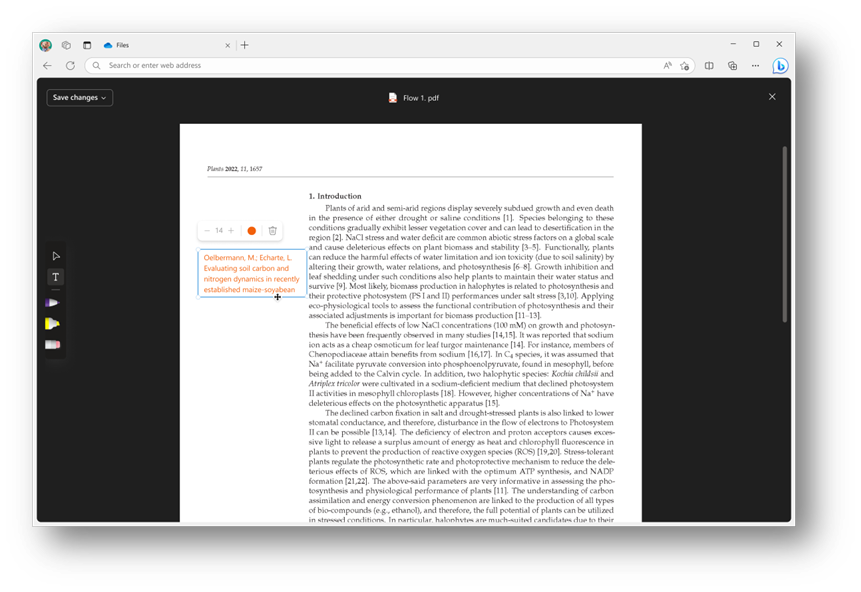
3. Use the Add Text command on the left side of the screen to insert text. 4. With the text box selected, you can change the color and adjust the font size using the menu above the text box. 5. When finished, click Save changes in the top left corner to exit Edit mode and save your changes to the PDF. [What you need to do to prepare:] This rollout will happen automatically with no admin action required. You may want to notify your users about this change and update any relevant documentation as |
| Machine Translation |
2024 年 6 月 6 日更新: 以下のロールアウト タイムラインを更新しました。何卒ご理解のほどよろしくお願いいたします。 この新しい Microsoft OneDrive 機能を使用すると、PDF ファイルが Microsoft OneDrive および Microsoft SharePoint に保存されているときに、テキスト ボックスで注釈を付けたり保存したりできます。
このメッセージは、Microsoft 365 ロードマップ ID 387807に関連付けられています [これがいつ起こるか:] 一般提供 (全世界、GCC、GCC High、DoD): 2024 年 6 月下旬 (以前は 5 月下旬) にロールアウトを開始し、2024 年 7 月下旬 (以前は 6 月下旬) までに完了する予定です。 [これが組織に及ぼす影響:] 注釈機能にアクセスするには、ファイルビューアでPDFを開き 、「編集」を選択します。テキストを追加するには、次の手順に従います。
3。画面の左側にある「 テキストの追加 」コマンドを使用して、テキストを挿入します。 4.テキストボックスを選択した状態で、テキストボックスの上にあるメニューを使用して、色を変更したり、フォントサイズを調整したりできます。 5.終了したら、左上隅の「 変更を保存 」をクリックして編集モードを終了し、変更を PDF に保存します。 [準備に必要なこと:] このロールアウトは自動的に行われ、管理者の操作は必要ありません。この変更についてユーザーに通知し、関連するドキュメントを次のように更新することができます。 |