| MC789315 | (Updated) Microsoft Teams: Create avatars from photo |
|---|
| Classification | stayInformed |
|---|---|
| Last Updated | 06/06/2024 21:33:02 |
| Start Time | 04/30/2024 23:46:17 |
| End Time | 07/29/2024 07:00:00 |
| Message Content |
Updated June 6, 2024: We have updated the content below to clarify the steps to enable the feature. Thank you for your patience. In Microsoft Teams, you will be able to take or upload a photo and let our AI-enabled technology generate your digital avatar. [When this will happen:] Public Preview: We will begin rolling out early June 2024 (previously mid-May) and expect to complete by late June 2024 (previously mid-June). [How this will affect your organization:] This feature is available in Microsoft Teams on Windows PC and Mac. To activate this option and enter immersive spaces on a PC, the system must meet the following minimum requirements:
The availability of this feature extends to a range of licenses, ensuring a broad spectrum of users can benefit from its capabilities. Eligible licenses include:
Additionally, this feature is accessible to subscribers of the following Microsoft 365, Office 365, and Business product suites that incorporate Teams:
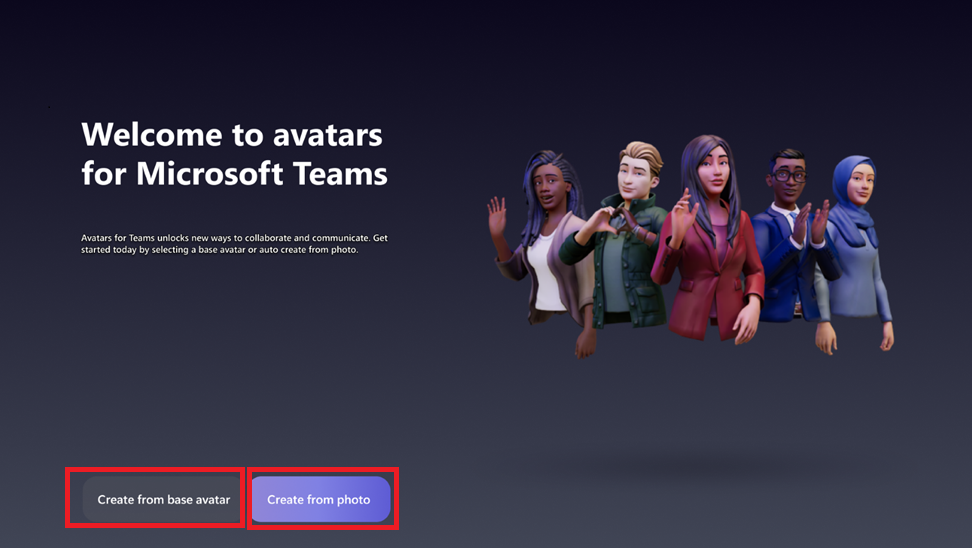
Set up: In the Avatars for Teams app, users can easily create an avatar from a photo by clicking the ‘+’ sign, then choosing ‘Create from photo’. Each user can have up to three avatars. To make a new one when you have three, simply delete an existing avatar first. The Start page showcases two options to create your avatar. The first option is to create it from base avatar (the original manual process), and the second option is to create it from photo: Current limitations: The Create avatar from photo feature requires Teams 2.1 or newer and is available exclusively on Teams for Windows PC and Mac. It is not supported in Immersive Spaces or the Mesh Standalone app. [What you need to do to prepare:] To enable the Create avatar from photo feature in Microsoft Teams, turn on Avatars for Microsoft Teams via the Teams Admin Center. Additional Resources: Learn more about how to manage apps in the Microsoft Teams admin center:
This feature will also be available in Microsoft Teams 2.1 (i.e., new Teams) for Public Preview. Mesh, in alignment with the broader M365 policies & operational practices, ensures the safety of your data as you traverse through the platform. Some of our commitments are listed below:
Microsoft Mesh adopts the privacy features from Microsoft 365, Teams and SharePoint where applicable. For more information, see Microsoft Privacy Statement, General Data Protection Regulation and the Microsoft EU Data Boundary.
|
| Machine Translation |
2024 年 6 月 6 日更新: この機能を有効にする手順を明確にするために、以下のコンテンツを更新しました。何卒ご理解のほどよろしくお願いいたします。 Microsoft Teamsでは、写真を撮影またはアップロードして、AI対応テクノロジーにデジタルアバターを生成させることができます。 [これがいつ起こるか:] パブリック プレビュー: 2024 年 6 月上旬 (以前は 5 月中旬) にロールアウトを開始し、2024 年 6 月下旬 (以前は 6 月中旬) までに完了する予定です。 [これが組織に及ぼす影響:] この機能は、Windows PC および Mac の Microsoft Teams で使用できます。このオプションを有効にしてPCで没入型スペースに入るには、システムが次の最小要件を満たしている必要があります。
この機能の可用性はさまざまなライセンスにまで拡張され、幅広いユーザーがその機能の恩恵を受けることができます。対象となるライセンスは次のとおりです。
さらに、この機能は、Teams を組み込んだ次の Microsoft 365、Office 365、Business 製品スイートのサブスクライバーがアクセスできます。
セットアップ: Teams のアバター アプリでは、ユーザーは “+” 記号をクリックし、[写真から作成] を選択することで、写真からアバターを簡単に作成できます。各ユーザーは最大 3 つのアバターを持つことができます。3つあるときに新しいアバターを作成するには、まず既存のアバターを削除するだけです。 スタート ページには、アバターを作成するための 2 つのオプションが表示されます。最初のオプションは、ベースアバター(元の手動プロセス)から作成することであり、2番目のオプションは、写真から作成することです。 現在の制限事項: 写真からアバターを作成する機能には Teams 2.1 以降が必要であり、Windows PC と Mac の Teams でのみ使用できます。イマーシブ スペースやメッシュ スタンドアロン アプリではサポートされていません。 [準備に必要なこと:] Microsoft Teams で写真からアバターを作成する機能を有効にするには、Teams 管理センターから Microsoft Teams のアバター を有効にします。 参考資料: Microsoft Teams 管理センターでアプリを管理する方法の詳細については、以下を参照してください。
この機能は、パブリック プレビューの Microsoft Teams 2.1 (つまり、新しい Teams) でも利用できるようになります。 Meshは、より広範なM365ポリシーと運用慣行に沿って、プラットフォームを通過する際のデータの安全性を確保します。当社の取り組みの一部を以下に示します。
Microsoft Mesh では、該当する場合は、Microsoft 365、Teams、SharePoint のプライバシー機能が採用されています。詳細については、「 Microsoft のプライバシーに関する声明」、「 一般データ保護規則 」、および 「Microsoft EU データ境界」を参照してください。
|