| MC750668 | (Updated) Microsoft Teams: Access Workflows from the three-dot menu on shared file |
|---|
| Classification | stayInformed |
|---|---|
| Last Updated | 06/28/2024 20:31:29 |
| Start Time | 03/21/2024 23:01:28 |
| End Time | 09/30/2024 07:00:00 |
| Message Content |
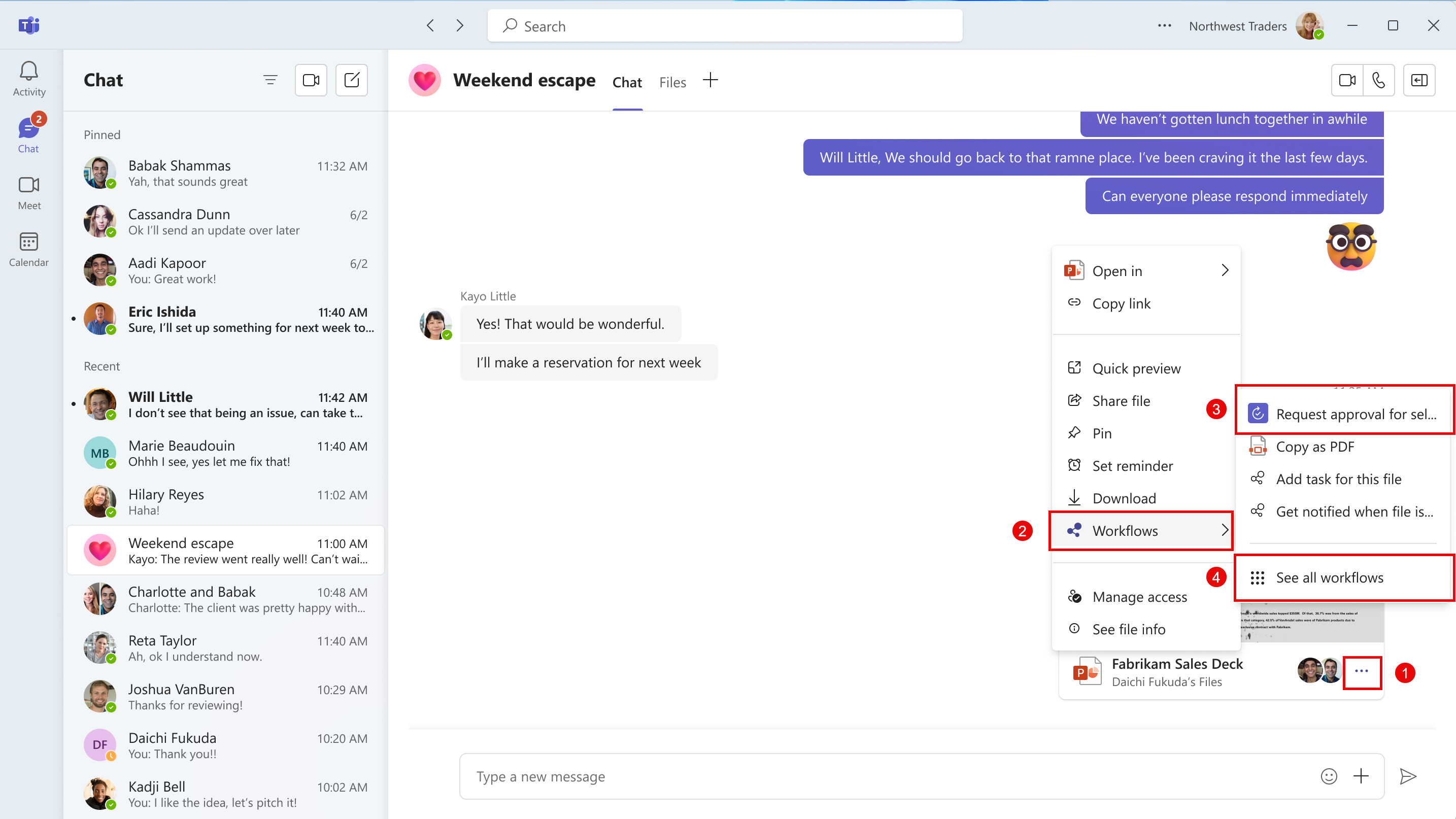
Updated June 28, 2024: We have updated the rollout timeline below. Thank you for your patience. Coming soon: Microsoft Teams will be bringing Workflows powered by Microsoft Power Automate to the three-dot menu for files shared in Teams chat or channels. This message is associated with Microsoft 365 Roadmap ID 381643. [When this will happen:] Worldwide: We will begin rolling out early August 2024 (previously early July) and expect to complete by mid-August 2024 (previously mid-August). GCC: We will begin rolling out mid-August 2024 (previously late July) and expect to complete by late August 2024 (previously early August). [How this will affect your organization:] To make sure Microsoft Teams provides the best workflow experience for our users, we are making it easier to configure and run workflows for files. A user will be able to select the three-dot menu on files shared in Teams chat or channels, and then choose Workflows. From Workflows, the user will choose an instant workflow to run on a file. The user must set up the workflows in advance. A user can set up a new workflow for files by selecting See more workflows at the bottom of the three-dot menu. This launches the Workflows task module, where a user can choose a template to start setting up a new workflow. Examples of file workflows include Request approval for selected file, Get notified in Teams when a file is updated, Create a PDF copy of the file, and Add a task for this file.
If the Power Automate app is disabled in the Teams admin center, users will not see this option in the three-dot menu. This feature will only be available in the New Teams client on the desktop and on the web. [What you need to do to prepare:] No action is needed from you to prepare for this rollout. You may want to notify your users about this change so they can find the new entry point for Workflows. |
| Machine Translation |
2024 年 6 月 28 日更新: 以下のロールアウト タイムラインを更新しました。何卒ご理解のほどよろしくお願いいたします。 近日公開予定: Microsoft Teams では、Microsoft Power Automate を利用したワークフローが、Teams チャットまたはチャネルで共有されるファイルの 3 ドット メニューに導入されます。 このメッセージは、Microsoft 365 ロードマップ ID 381643に関連付けられ ています。 [これがいつ起こるか:] 全世界: 2024 年 8 月上旬 (以前は 7 月上旬) にロールアウトを開始し、2024 年 8 月中旬 (以前は 8 月中旬) までに完了する予定です。 GCC: 2024 年 8 月中旬 (以前は 7 月下旬) にロールアウトを開始し、2024 年 8 月下旬 (以前は 8 月上旬) までに完了する予定です。 [これが組織に及ぼす影響:] Microsoft Teams がユーザーに最適なワークフロー エクスペリエンスを提供できるように、ファイルのワークフローの構成と実行が簡単になりました。ユーザーは、Teams チャットまたはチャネルで共有されているファイルの 3 つのドット メニューを選択し、[ ワークフロー] を選択できます。ユーザーは [ワークフロー] から、ファイルに対して実行するインスタント ワークフローを選択します。ユーザーは、ワークフローを事前に設定する必要があります。ユーザーは、3ドットメニューの下部にある[ ワークフローをさらに表示 ]を選択することで、ファイルの新しいワークフローを設定できます。これにより、ワークフロー タスク モジュールが起動し、ユーザーはテンプレートを選択して新しいワークフローの設定を開始できます。ファイル ワークフローの例としては、選択したファイルの承認を要求する、ファイルが更新されたときに Teams で通知を受け取る、ファイルの PDF コピーを作成する、このファイルのタスクを追加するなどがあります。
Teams 管理センターで Power Automate アプリが無効になっている場合、ユーザーには 3 ドット メニューにこのオプションが表示されません。 この機能は、デスクトップと Web 上の新しい Teams クライアントでのみ使用できます。 [準備に必要なこと:] このロールアウトの準備のために、お客様による操作は必要ありません。この変更についてユーザーに通知して、ユーザーがワークフローの新しいエントリポイントを見つけられるようにすることができます。 |