| MC561188 | Microsoft Teams: Set your Work Hours and Location |
|---|
| Classification | stayInformed |
|---|---|
| Last Updated | 05/26/2023 00:34:47 |
| Start Time | 05/26/2023 00:34:42 |
| End Time | 09/09/2023 07:00:00 |
| Message Content |
Set your work location for the day in Microsoft Teams so your team can learn about your availability for in-office and remote collaboration. This message is associated with Microsoft 365 Roadmap ID 125375 [When this will happen:] Targeted Release and Preview: We have begun rollout and expect to complete rollout by late May. Standard Release: We will begin rolling out in early June and expect to complete rollout by early August. [How this will affect your organization:] We are highlighting Microsoft 365 features that will bring transparency and focus on where you and your colleagues are working: work hours and location. These features will appear in Outlook on the web and Teams and bring the flexibility of enabling users to share where they are working. You’re already accustomed to managing and sharing your schedule in Outlook and Teams. With these additional features, Microsoft 365 is now location-aware C giving more information to you and colleagues to work better together. Microsoft 365 already helps you manage and share your work schedule and availability. The work hours and location features allow you to specify more details about your work schedule and preferences, like from where you’re working (remotely or in office) and whether you work different hours on different days.
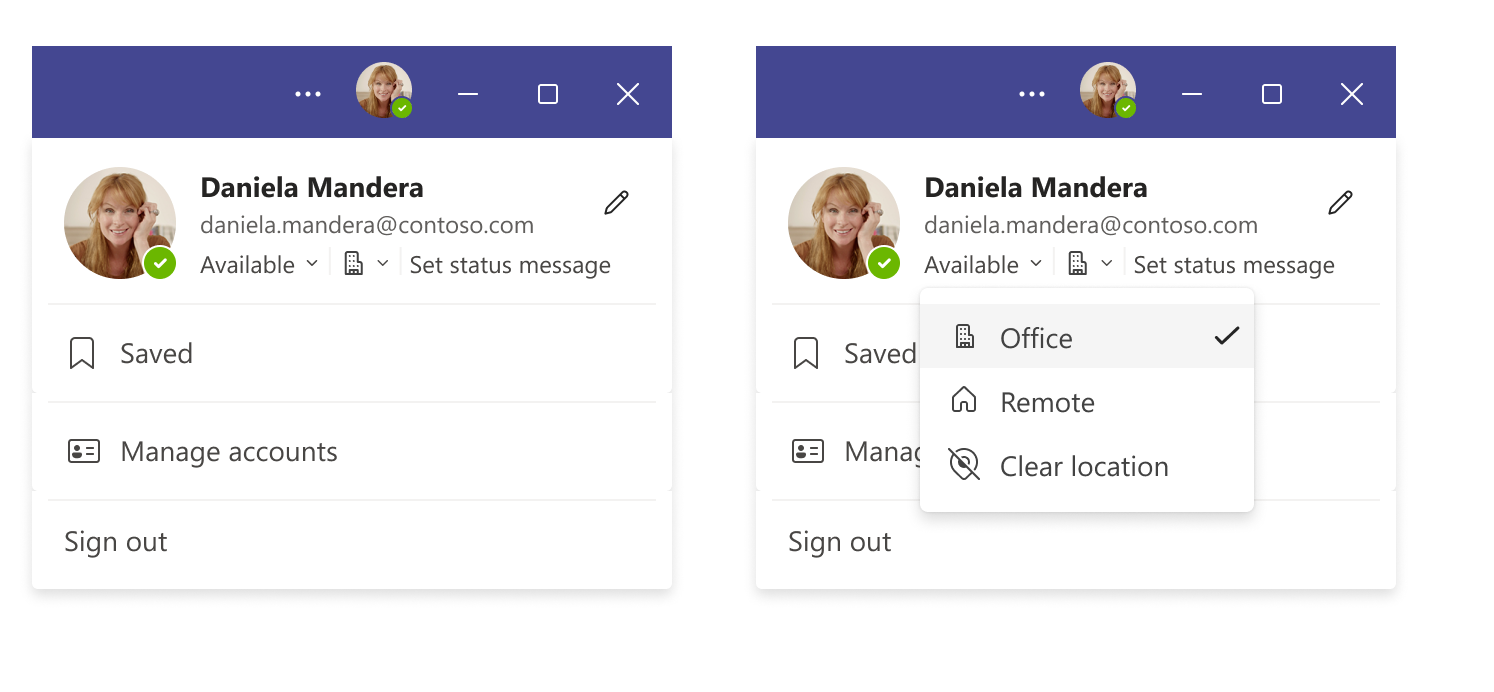
Teams gives you the flexibility to easily change the location for that day, without impacting the rest of your week. For example, after a few hours in the office, you decide to finish up your work from home. To change your location from Teams, simply click on your profile on the top right corner of the Teams window, view your account settings menu and change your work location for that day. You can also update your location from any device with Teams. If you want to quickly look up where someone is working from, you can view their location in their profile card next to their availability. [What you need to do to prepare:] There is no action required from you at this time. You may want to notify your users of this update. |
| Machine Translation |
その日の勤盏丐Microsoft TeamsにO定して、チ`ムがオフィス内およびリモ`トコラボレ`ションの可用性について知ることができるようにします。 このメッセ`ジは、Microsoft 365 ロ`ドマップ ID にvB付けられています125375 [これが起こるとき:] 象指定リリ`スとプレビュ`: ロ`ルアウトを_始しており、5 月下旬までにロ`ルアウトを完了する予定です。 圣辚戛`ス: 6 月上旬にロ`ルアウトを_始し、8 月上旬までにロ`ルアウトを完了する予定です。 [これがMに与える影:] 透明性をもたらし、あなたとあなたの同僚がPいている鏊膜蓼昵rgと鏊私沟悚虻堡皮Microsoft 365のC能を{しています。これらのC能は Outlook on the web と Teams に表示され、ユ`ザ`が作Iしている鏊蚬灿肖扦肴彳性をもたらします。あなたはすでにOutlookとTeamsでスケジュ`ルを管理し共有することにTれています。これらの追加C能により、Microsoft 365 は位置をJRし、あなたと同僚により多くの情螭蛱峁─筏啤瑜赀m切にB携できるようになりました。 Microsoft 365 は、作Iスケジュ`ルと可用性の管理と共有を既に支援しています。勤rgと鏊C能を使用すると、勤鏊(リモ`トまたはオフィス)や、なる日になるrgに勤栅工毪嗓Δ胜伞⑶榨攻饱弗濠`ルとO定にvするを指定できます。
Teams を使用すると、Lの残りの部分に影を与えることなく、その日の鏊蚝gに涓工肴彳性が得られます。たとえば、オフィスで数rg^ごした後、自宅で仕事をKえることにしたとします。Teams から鏊涓工毪摔稀[チ`ム] ウィンドウの右上隅にあるプロファイルをクリックし、アカウントO定メニュ`を表示して、その日の作I鏊涓筏蓼埂 Teams を使用して、任意のデバイスから位置情螭蚋陇工毪长趣猡扦蓼埂Ulかがどこから仕事をしているかをすばやく{べたい龊悉稀⒖栅rg情螭魏幛摔毳抓恁榨)`ルカ`ドでその人の鏊虮硎兢扦蓼埂 [浃工毪郡幛吮匾胜长:] Fr点では、必要な操作はありません。この更新プログラムをユ`ザ`に通知することをお幛幛筏蓼埂 |