| MC673980 | Microsoft Viva: Verified Topics Badges |
|---|
| Classification | stayInformed |
|---|---|
| Last Updated | 09/06/2023 23:16:52 |
| Start Time | 09/06/2023 23:16:30 |
| End Time | 10/31/2023 07:00:00 |
| Message Content |
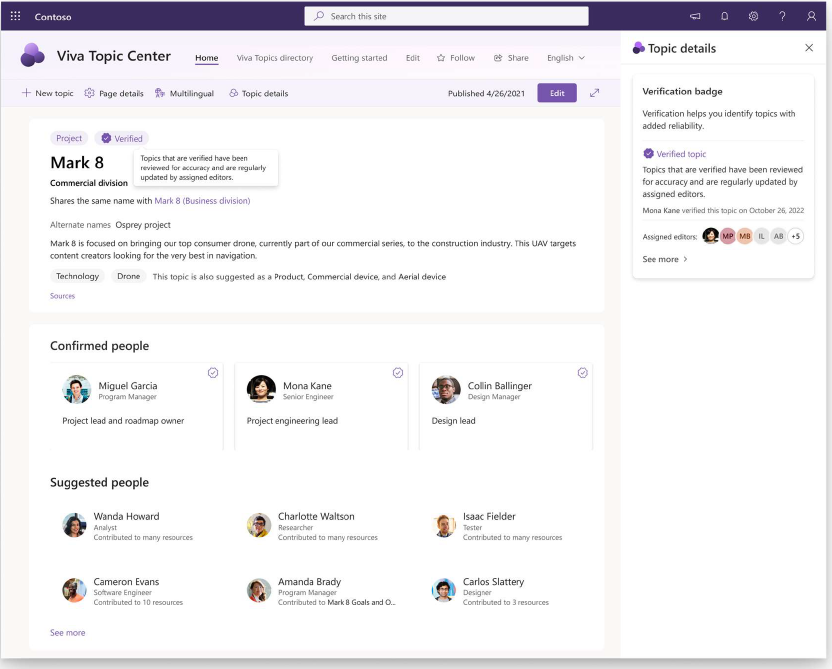
With this update, editors can mark published topics as Verified in Microsoft Viva and add a specific group of SMEs as editors to the topic. Verification helps readers identify topics with added reliability. Topics that are Verified are identified by a special badge and indicate the content is reviewed for accuracy and are regularly updated by assigned editors. Assigned editors will be informed of being added to the topic via an email.
This message is associated with Microsoft 365 Roadmap ID 118239
[When this will happen:] Preview: Rollout has begun and is expected to be complete by early September 2023. Standard Release: Rollout will begin early September 2023 and is expected to complete by mid-September 2023. [How this will affect your organization:] Users can add a Verified badge to a topic to indicate that it’s been manually reviewed for accuracy by a subject matter expert. To add a Verified badge:
Note: The person who verifies the topic will be automatically assigned as an editor and can’t be removed. Knowledge managers are always able to edit the topic. Assigned editors can add or remove other editors. They can also unmark the topic as verified if the topic is no longer meeting your organization’s standards for verification. To remove or change a verifier, the new verifier must be in the assigned editors list or a knowledge manager. The new verifier needs to unmark the topic as verified and verify it again. [What you need to do to prepare:]
For additional information on how to use Viva Topics, please visit this page. |
| Machine Translation |
この更新プログラムを使用すると、編集者は公開されたトピックを Microsoft Viva で検証済みとしてマークし、特定の SME グループをトピックの編集者として追加できます。検証は、読者が信頼性を高めてトピックを特定するのに役立ちます。検証済みのトピックは特別なバッジで識別され、コンテンツの正確性がレビューされ、割り当てられた編集者によって定期的に更新されることを示します。割り当てられた編集者には、電子メールでトピックに追加されたことが通知されます。
このメッセージは、Microsoft 365 ロードマップ ID に関連付けられています 118239
[これが起こるとき:] プレビュー: ロールアウトが開始されており、2023 年 9 月初旬 までに完了する予定です。 標準リリース: ロールアウトは 2023 年 9 月初旬に開始され、2023 年 9 月中旬までに完了する予定です。 [これが組織に与える影響:] ユーザーは、トピックに確認済みバッジを追加して、対象分野の専門家によって正確性が手動で レビューされたことを示すことができます。認証済みバッジを追加するには:
注: トピックを確認したユーザーは、自動的に編集者として割り当てられ、削除することはできません。ナレッジ マネージャーは、常にトピックを編集できます。 割り当てられた編集者は、他の編集者を追加または削除できます。また、トピックが組織の検証基準を満たしていない場合に、トピックを検証済みとしてマーク解除することもできます。検証者を削除または変更するには、新しい検証者が割り当てられた編集者リストまたはナレッジ マネージャーに含まれている必要があります。新しい検証者は、トピックを検証済みとしてマーク解除し、再度検証する必要があります。 [準備するために必要なこと:]
|