| MC684218 | Release of Preserve Declined Meetings in November |
|---|
| Classification | stayInformed |
|---|---|
| Last Updated | 10/26/2023 00:53:01 |
| Start Time | 10/26/2023 00:52:55 |
| End Time | 12/29/2023 08:00:00 |
| Message Content |
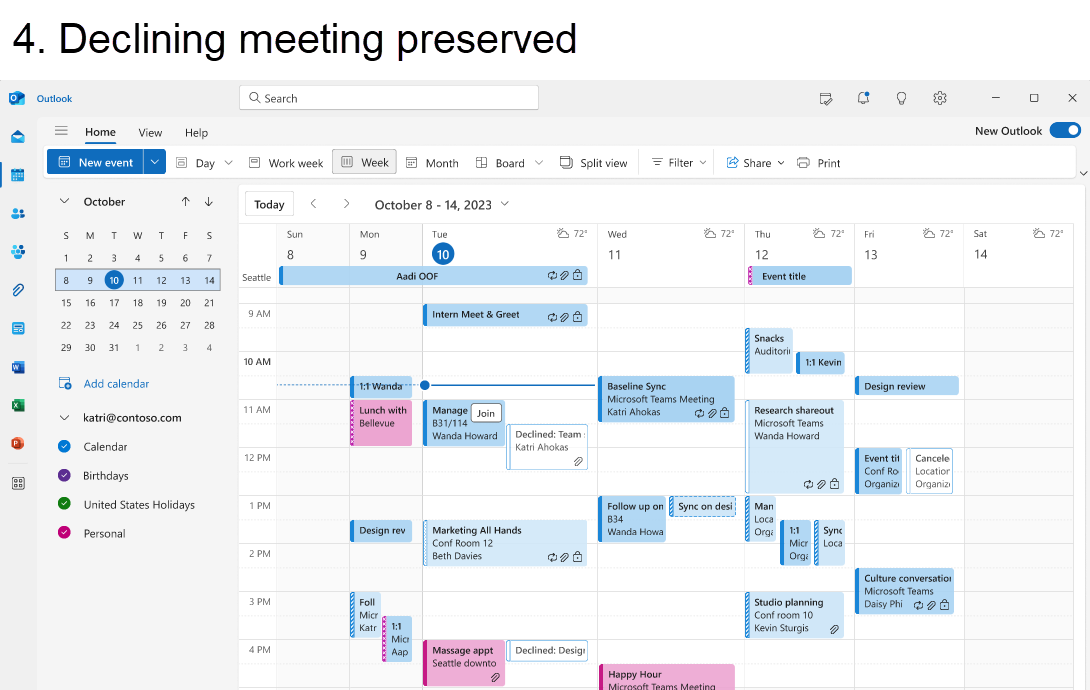
Next month we will release a new feature called Preserve Declined Meetings (PDM) to keep declined meetings on the calendar, instead of deleting them like today. Once you tum it on, your declined meetings will no longer disappear but remain on your calendar so you can easily recollect related info/docs, find associated chats, or even take actions like updating your previous response (RSVP) and forwarding it to someone else; all while keeping your agenda free in that time slot.
This message is associated with Microsoft 365 Roadmap ID 154056
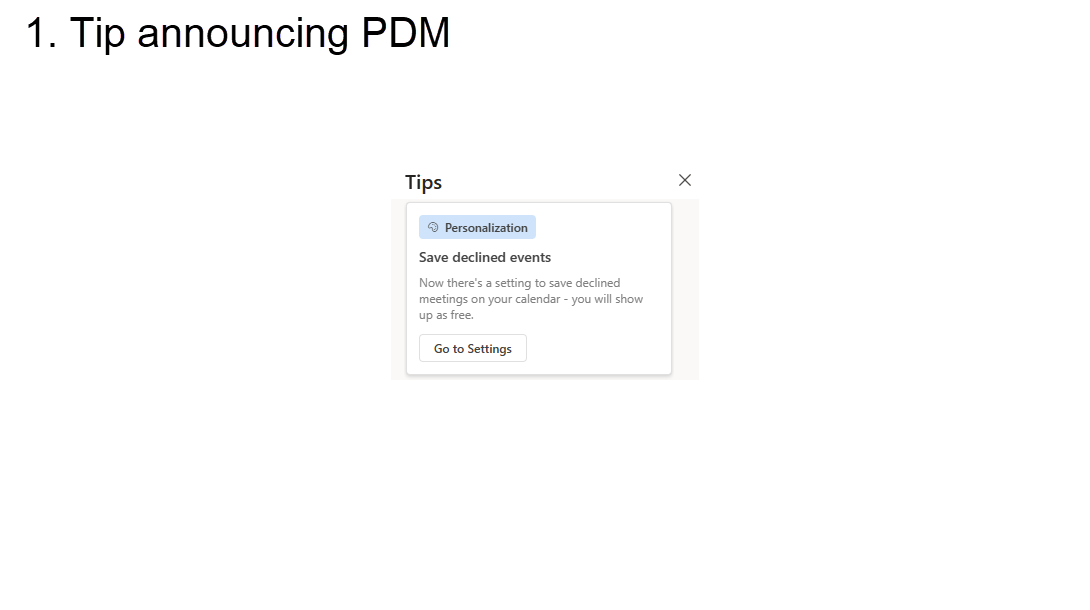
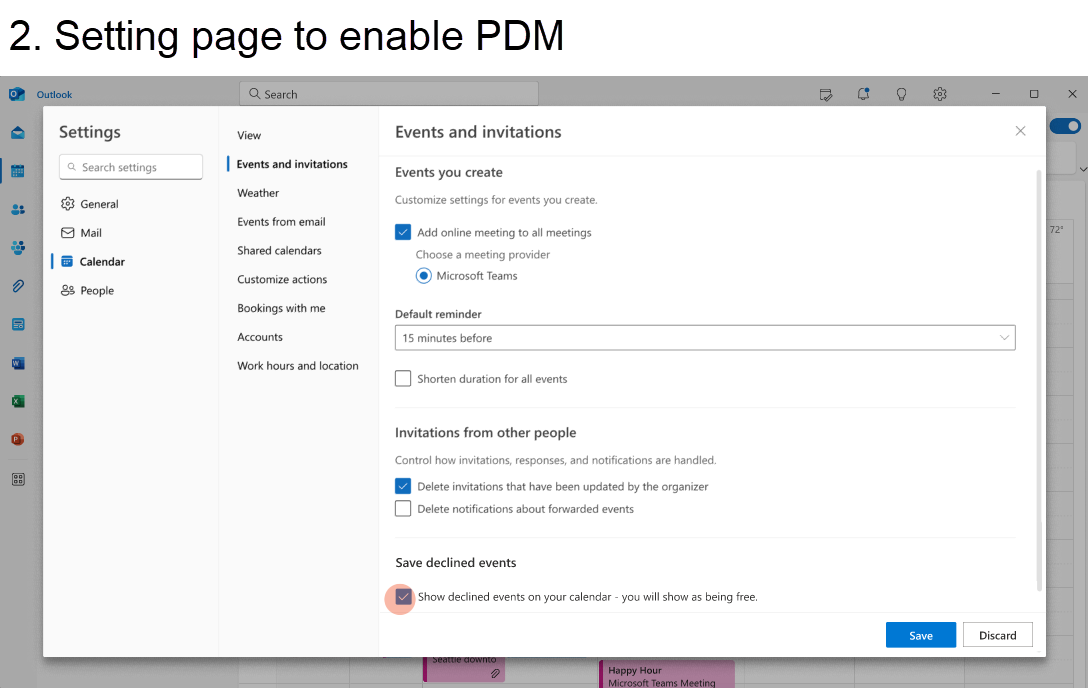
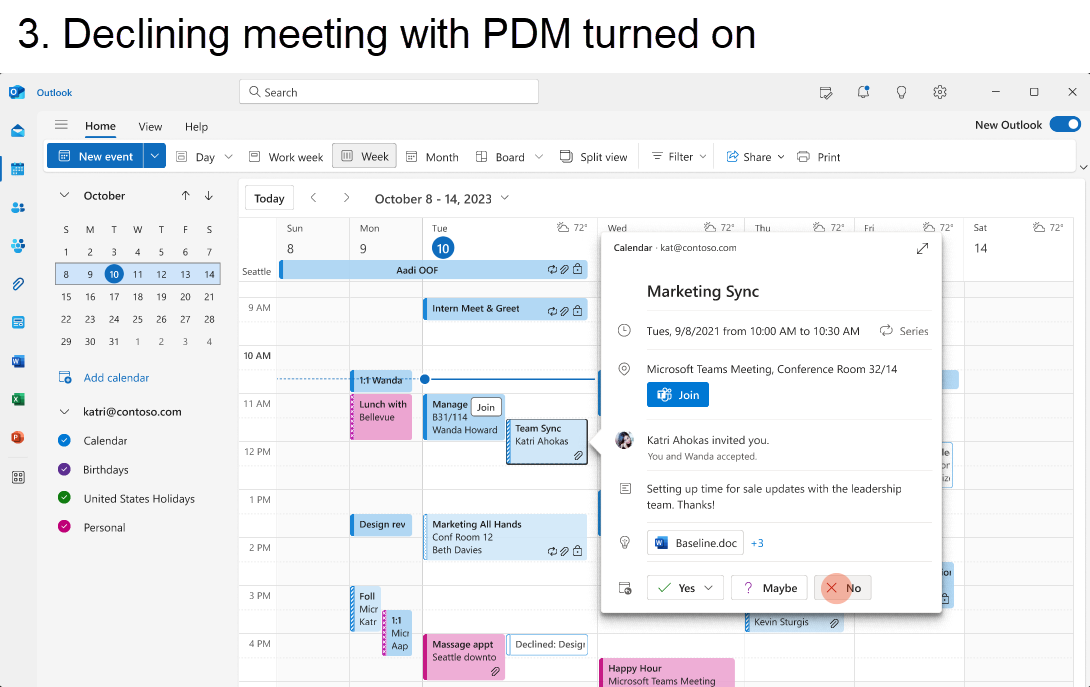
[When this will happen:] Standard Release: We will begin rolling out in mid-November and expect to complete by late November. [How this will affect your organization:] With the rollout, users on Outlook on the web and on new Outlook for Window will see a new tip which will guide them to the settings page (Calendar > Events and invitations > Save declined events) where they can enable the feature by checking the “Show declined events on my calendar” checkbox. With PDM enabled, users can start declining meetings and they will automatically be preserved. Please note that meetings declined from the classic Outlook for Windows will not be preserved, but meetings declined from all other Outlook clients (new Outlook for Windows, Outlook on the web. Outlook for Mac, Outlook for Android, Outlook for iOS) will be preserved. Once preserved, declined meetings are viewable on any calendar surface, including the classic Outlook for Windows, Teams, and third-party apps.
[What you need to do to prepare:]
There is nothing you need to do to prepare for this change. But in case you need to disable PDM availability for your entire tenant, you can do so (after the WW release) by running get/set CalendarSettings commands. The tenant setting will override individual user settings. To disable PDM for your tenant, do the following as a tenant admin: 1. Connect to Exchange Online PowerShell | Microsoft Learn 2. Use get command to read the current PDM tenant setting (e.g. Get-CalendarSettings <tenant-name>) 3. Use set command to disable PDM for the entire tenant (e.g. Set-CalendarSettings <tenant-name> -EnablePreserveDeclinedMeetings $false)
|
| Machine Translation |
来月は、今日のように拒否された会議を削除するのではなく、予定表に保持する拒否された会議を保持する(PDM)と呼ばれる新機能をリリースします。オンにすると、辞退した会議は消えなくなりますが、カレンダーに残るため、関連する情報/ドキュメントを簡単に思い出したり、関連するチャットを見つけたり、以前の応答(RSVP)を更新して他の人に転送するなどのアクションを実行したりすることもできます。その時間帯にあなたの議題を自由に保ちながら。
このメッセージは、Microsoft 365 ロードマップ ID に関連付けられています154056
[これが起こるとき:] 標準リリース: 11 月中旬にロールアウトを開始し、11 月下旬までに完了する予定です。 [これが組織に与える影響:] ロールアウトにより、Web 上の Outlook および新しい Outlook for Window のユーザーには、設定ページ ([予定表>イベントと招待状] > [拒否された予定を保存する] の [拒否された予定を表示する] チェック ボックスをオンにして機能を有効にするための新しいヒントが表示されます。PDM を有効にすると、ユーザーは辞退ミーティングを開始でき、自動的に保持されます。従来の Outlook for Windows から辞退された会議は保持されませんが、他のすべての Outlook クライアント (新しい Outlook for Windows、Outlook on the web.Outlook for Mac、Outlook for Android、Outlook for iOS)は保持されます。一度保存すると、辞退された会議は、従来の Outlook for Windows、Teams、サード パーティ製アプリなど、任意の予定表画面に表示できます。
[準備するために必要なこと:]
この変更に備えるために行う必要がある作業は何もありません。ただし、テナント全体の PDM 可用性を無効にする必要がある場合は、(WW リリース後に) CalendarSettings の取得/設定コマンドを実行することで無効にできます。テナント設定は、個々のユーザー設定よりも優先されます。テナントの PDM を無効にするには、テナント管理者として次の手順を実行します。 1. Exchange Online PowerShell に接続する |マイクロソフト ラーニング 2. get コマンドを使用して、現在の PDM テナント設定 (例: Get-CalendarSettings <テナント名>) を読み取ります。 3. set コマンドを使用して、テナント全体の PDM を無効にします (例: 設定-カレンダー設定 <テナント名> -有効保存拒否された会議 $false)
|