| MC684224 | (Updated) Add Individual File Shortcuts in OneDrive Web |
|---|
| Classification | stayInformed |
|---|---|
| Last Updated | 12/11/2023 20:09:37 |
| Start Time | 10/26/2023 00:55:33 |
| End Time | 02/29/2024 08:00:00 |
| Message Content |
Updated December 11, 2023: We have updated the rollout timeline below. Thank you for your patience. You can create a shortcut to files stored in other people’s OneDrive’s and document libraries to be able to easily find it within your OneDrive. These file shortcuts can be moved and renamed without impacting the source content and will show up in OneDrive Android, iOS & sync client endpoints.
This message is associated with Microsoft 365 Roadmap ID 177873
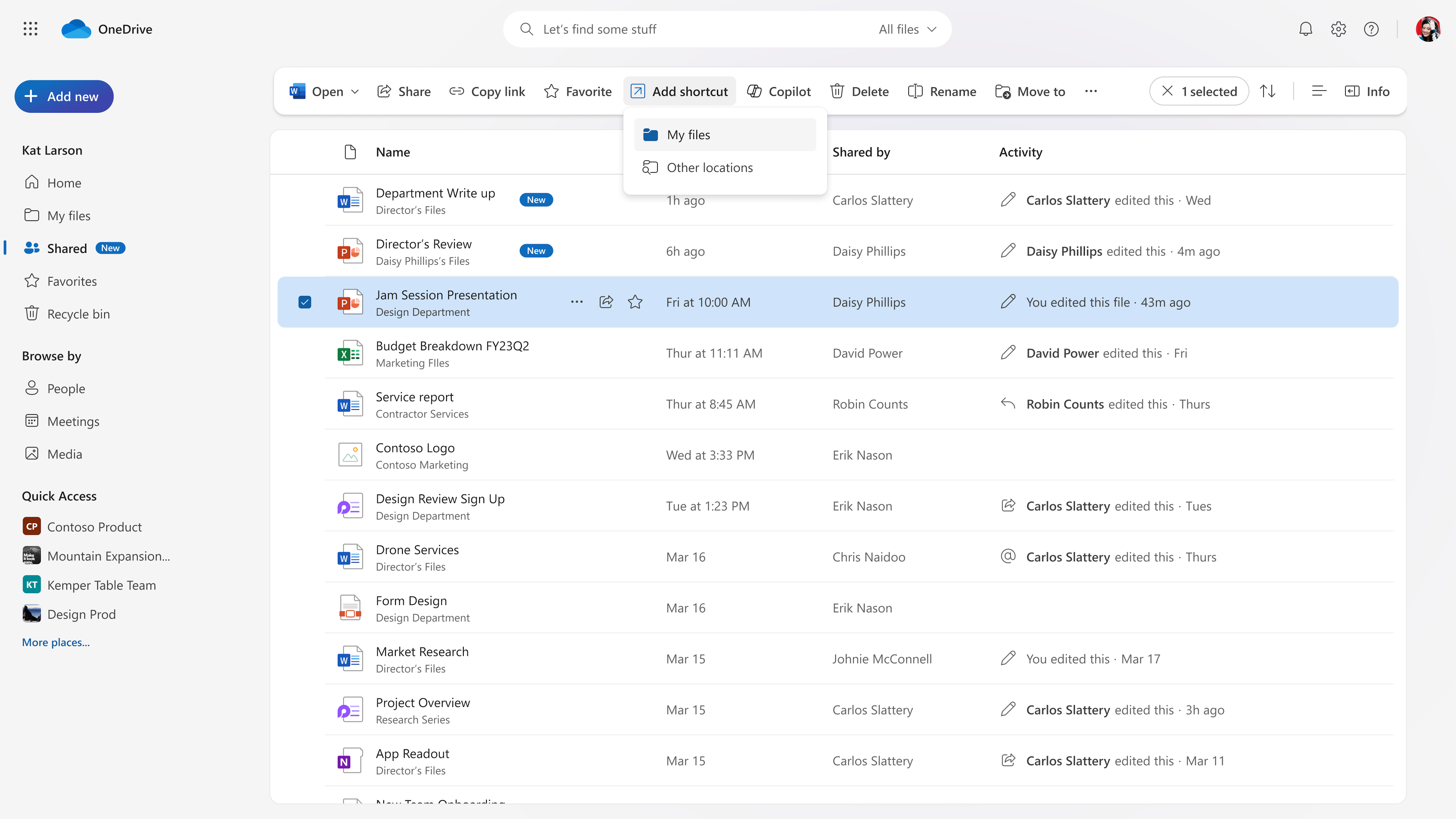
[When this will happen:] We will begin rolling out in early November and expect to complete by late December 2023 (previously late November). [How this will affect your organization:] Users will see an Add Shortcut command in the command bar and context menu for a file. This command will be available across all OneDrive file lists (Home, My files, Shared, Favorites, etc.) as well as document libraries. It will also be available for document libraries browsed within SharePoint and Teams.
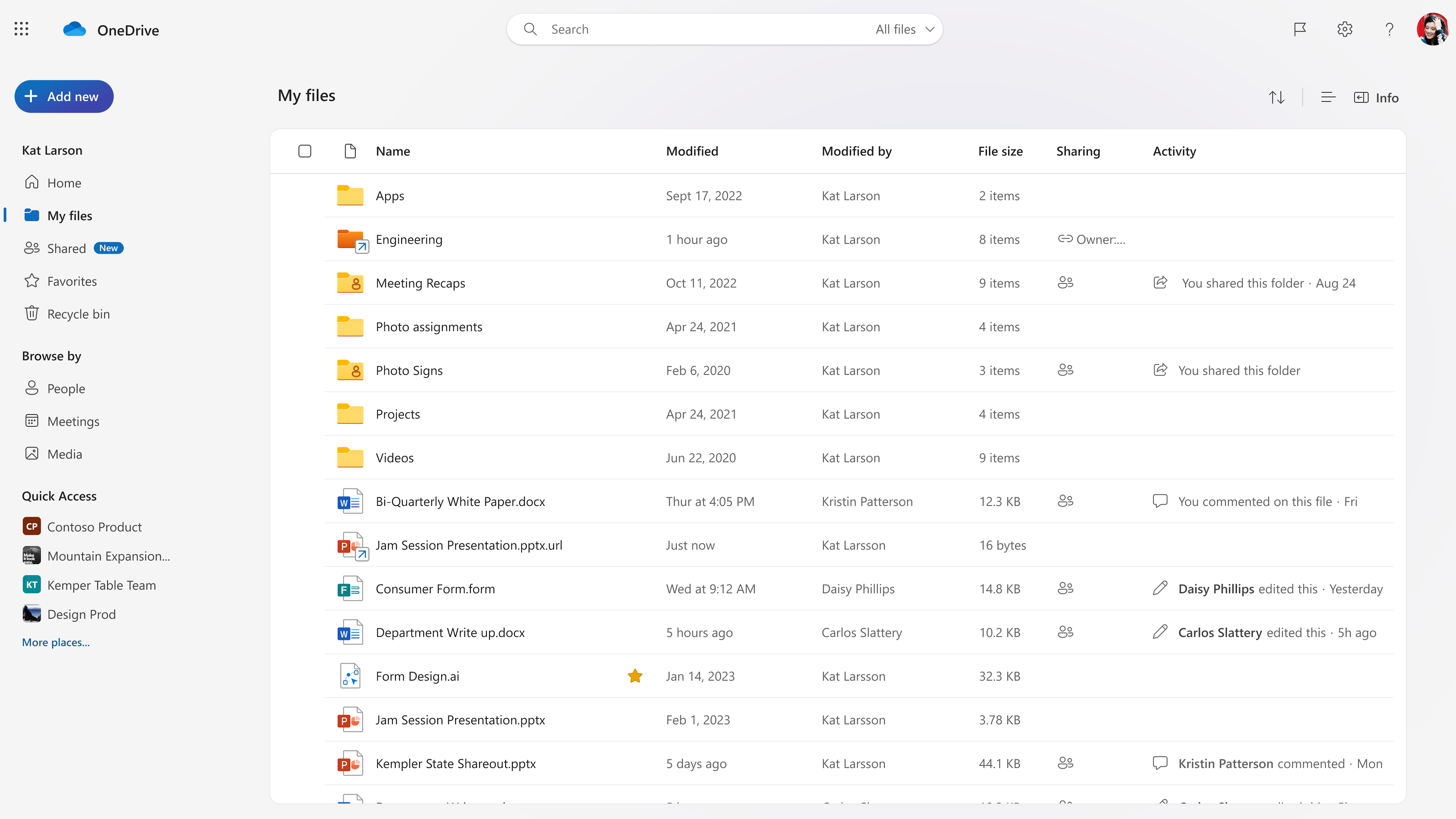
When a user selects a file and clicks Add Shortcut, they will see two options for where to add a shortcut to: My files and Other locations. If the user selects My files, a .url file will be created within their My files list in OneDrive. If they select Other locations, a file picker will launch for users to choose a location for their file shortcut within their OneDrive as well as document libraries they have access to. The default name of the shortcut will be the name of the source file appended with .url. For example, if you create a shortcut to IndividualFileShortcuts.docx, the name of the shortcut will be IndividualFileShortcuts.docx.url and will be differentiated with an arrow icon overlay. The file shortcut is simply a pointer to a file. When a user renames, moves, deletes or shares a file shortcut, this only impacts the shortcut file and has no impact on the source file. A key implication of this behavior is that, if a user shares a shortcut file or moves a shortcut file to a shared location, it does not automatically grant access to the source file and users would need to share the source file directly to allow access. If the source file is renamed after the file shortcut was created, the file shortcut will not reflect the new source file name. File shortcuts support the same commands as other .url files in OneDrive and SharePoint that were created through New > Link. File shortcuts can only be added through OneDrive Web, SharePoint Web and Teams. File shortcuts can be accessed across OneDrive Web, SharePoint Web, OneDrive iOS & Android, OneDrive Sync Client and Teams. There is no meaningful distinction in file shortcut access behavior across endpoint.
[What you need to do to prepare:]
You may want to notify your users, update your user training, and prepare your help desk. For your users: Add shortcuts to shared folders in OneDrive for work or school
|
| Machine Translation |
2023 年 12 月 11 日更新: 以下のロールアウト タイムラインを更新しました。何卒ご理解のほどよろしくお願いいたします。 他のユーザーの OneDrive やドキュメント ライブラリに保存されているファイルへのショートカットを作成して、OneDrive 内で簡単に見つけられるようにすることができます。これらのファイル ショートカットは、ソース コンテンツに影響を与えることなく移動および名前変更でき、OneDrive、Android、iOS、および同期クライアント エンドポイントに表示されます。
このメッセージは、Microsoft 365 ロードマップ ID 177873に関連付けられています
[これがいつ起こるか:] 11 月上旬にロールアウトを開始し、2023 年 12 月下旬 (以前は 11 月下旬) までに完了する予定です。 [これが組織に及ぼす影響:] ユーザーには、ファイルのコマンド バーとコンテキスト メニューに [ショートカットの追加 ] コマンドが表示されます。このコマンドは、すべての OneDrive ファイル リスト (ホーム、マイ ファイル、共有、お気に入りなど) とドキュメント ライブラリで使用できます。また、SharePoint と Teams 内で参照されているドキュメント ライブラリでも使用できます。
ユーザーがファイルを選択して [ショートカットの追加] をクリックすると、ショートカットを追加する場所として [ マイ ファイル ] と [その他の場所] の 2 つのオプションが表示されます。 ユーザーが [ マイ ファイル] を選択すると、OneDrive の [マイ ファイル] リスト内に .url ファイルが作成されます。[ その他の 場所] を選択すると、ファイル ピッカーが起動し、ユーザーは OneDrive 内のファイル ショートカットの場所と、アクセスできるドキュメント ライブラリを選択できます。 ショートカットの既定の名前は、ソース ファイルの名前に .url を付加したものになります。たとえば、IndividualFileShortcuts.docx へのショートカットを作成した場合、ショートカットの名前は IndividualFileShortcuts.docx.url になり、矢印アイコン オーバーレイで区別されます。 ファイルショートカットは、単にファイルへのポインタです。ユーザーがファイルのショートカットの名前を変更、移動、削除、または共有した場合、これはショートカットファイルにのみ影響し、ソースファイルには影響しません。この動作の主な意味は、ユーザーがショートカット ファイルを共有したり、ショートカット ファイルを共有の場所に移動したりした場合、ソース ファイルへのアクセスが自動的に許可されないため、ユーザーがアクセスを許可するにはソース ファイルを直接共有する必要があることです。ファイルショートカットの作成後にソースファイルの名前が変更された場合、ファイルショートカットには新しいソースファイル名は反映されません。 ファイル ショートカットは、 新しい > Link を使用して作成された OneDrive および SharePoint の他の .url ファイルと同じコマンドをサポートします。 ファイル ショートカットは、OneDrive Web、SharePoint Web、Teams からのみ追加できます。ファイルのショートカットには、OneDrive Web、SharePoint Web、OneDrive iOS & Android、OneDrive Sync Client、Teams からアクセスできます。エンドポイント間でのファイル ショートカット アクセス動作に意味のある違いはありません。
[準備に必要なこと:]
ユーザーへの通知、ユーザートレーニングの更新、ヘルプデスクの準備などを行うことができます。 ユーザー向け: 職場または学校の OneDrive の共有フォルダーにショートカットを追加する
|